
CALLING APPS
Set up Ringotel click-to-call on Mac
Make telephone links open in Ringotel on your Mac by installing its optional click-to-call component.
1. Download the correct installer
Choose the Ringotel installer for your Mac:
Unsure which you have? Open Apple menu → About This Mac and check the chip or processor.
2. Include the click-to-call component
Ringotel recommends removing the existing app before installing the new download. Have your Ringotel sign-in details available first. On a company-managed Mac, ask your IT administrator to handle the installation.
- Open the downloaded installer.
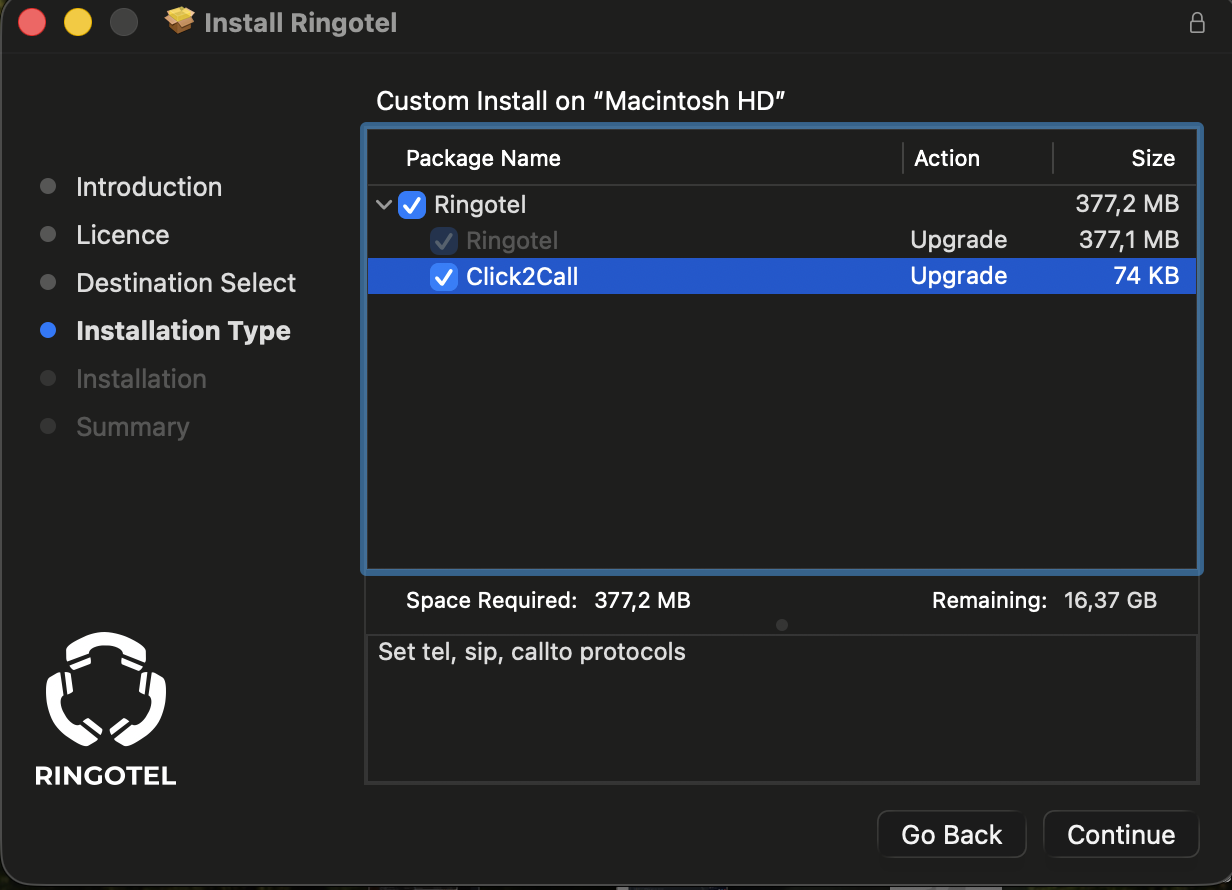
- At Installation Type, open the custom installation options if needed and expand the Ringotel package.
- Ensure Click2Call is checked, as shown below. Ringotel’s instructions also call this feature Click2Dial.
- Click Continue and finish installing.
3. Try a telephone link
Open Ringotel and sign in. Click a tel: or callto: link in a trusted website or business application. Allow the browser to open Ringotel if prompted. Use a number you are authorized to call when testing.
If it does not work
Check that Click2Call was included in the installation. Plain-text phone numbers do not automatically become clickable links. If the component is missing or another app still opens, contact your company’s IT administrator or Junction support.
Using Windows? See Set up click-to-call on Windows 11.