
CALLING APPS
Click to Dial Chrome Extension
Junction PBX Click to Dial (also called click2dial) provides phone control from Chrome. Click a telephone number, highlight text, or enter a number in the dialer. Review the destination and selected phone before calling. Audio stays on your phone.
Install from the Chrome Web Store
- In Google Chrome, open Junction PBX Click to Dial in the Chrome Web Store.
- Click Add to Chrome, review the permissions, then click Add extension.
- Open Chrome's puzzle-piece Extensions menu and pin Junction PBX Click to Dial.
If the listing is unavailable or your organization blocks installation, contact your administrator.
Connect your phone
Ask your administrator for the HTTPS PBX server URL, Domain UUID, personal API key, and assigned extension. Use your own restricted user key, not a shared administrator key.
- Click the Junction toolbar icon, then Settings.
- Enter the PBX server URL without a login or API path, for example
https://pbx.example.com. - Enter your Domain UUID, Extension, and API key. The Domain UUID is a separate identifier supplied by your administrator.
- Choose the Default country for phone numbers. Leave other formatting choices at their defaults unless your administrator advises otherwise.
- Click Save connection & find phones and allow access to the PBX host when Chrome asks.
- Under Your preferred phone, choose a registered phone and click Save phone. Use Refresh phones to update the list.
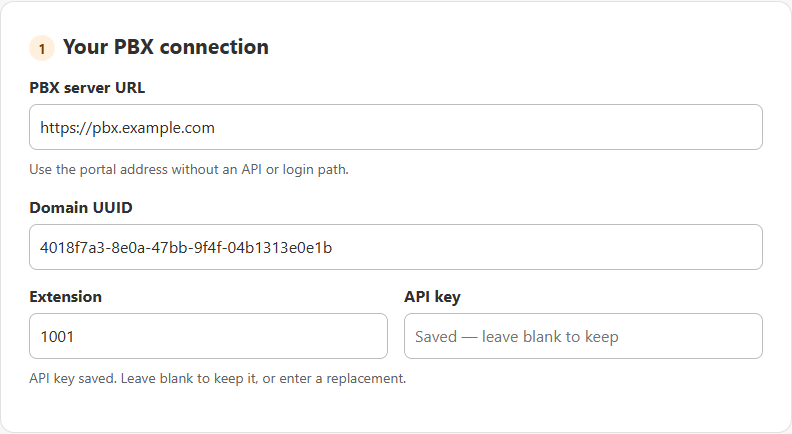
The saved API key is never filled back into Settings. Saved — leave blank to keep means your key is already stored. Leave the field blank to keep it, or enter a replacement. Changing the server or domain requires entering a key again.
Your preferred phone does not depend on its LAN IP address. Phones are refreshed immediately before calling. A model or firmware change may require reselection. If multiple phones have identical identities, ask your administrator to distinguish them or use separate extensions.
Choose how numbers are handled
In Settings, open Dialing from websites:
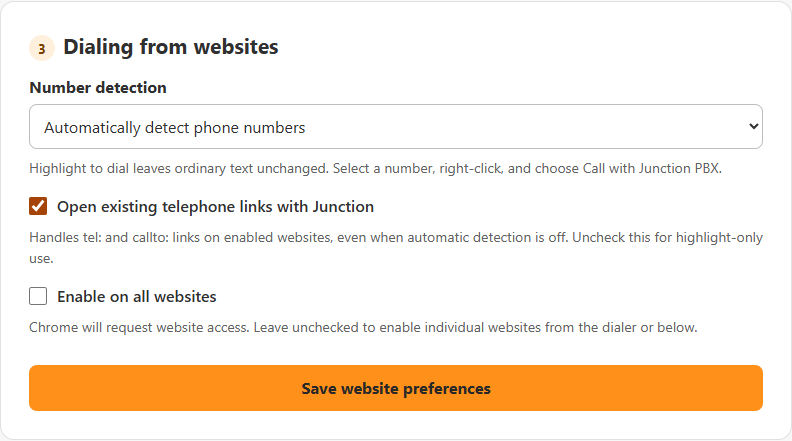
- Automatically detect phone numbers makes recognized numbers in ordinary page text clickable.
- Highlight to dial leaves ordinary text unchanged. Select a number, right-click, and choose Call with Junction PBX.
- Open existing telephone links with Junction handles
tel:andcallto:links on enabled websites, even in highlight mode. Uncheck it for highlight-only operation. - Enable on all websites requests Chrome access to all ordinary websites. Leave it unchecked to choose websites individually.
Click Save website preferences. For one website, open it, click the Junction icon, expand Website access, and click Enable this website. Grant Chrome access. Settings also has an Individual websites list. You can turn a site off again without losing the other choices.
Make a call
- Click a detected number or telephone link on an enabled website. You can also open the Junction toolbar icon and type in Number to call or use the keypad.
- Check the Will dial preview and choose the phone under Call using. Use as preferred saves that phone for later.
- Click Call on my phone once, then check your phone.
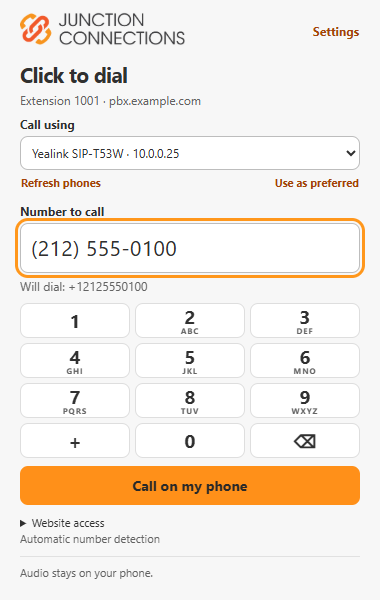
After a call, edit the number or select a different phone to prepare another call. Start another call clears the number. Editing never places a call automatically: review and click Call on my phone again.
A sent request does not mean the destination answered. Normal PBX calling charges apply. If a response is lost, check your phone before retrying; the extension never retries automatically.
Right-click a number
Right-click an existing telephone link and choose Call with Junction PBX. For ordinary text, highlight the number first, then right-click. These actions work independently of automatic text detection where Chrome permits the context menu.
Number formatting
International format checks complete numbers and adds the country code using your default country. Keep entered digits removes spaces and punctuation without automatically adding a country code. Your administrator may ask you to add a country code to 10-digit entries or remove the leading +. Always check Will dial.
Allow short internal extensions enables manual or highlighted numbers of 1–6 digits. Short numbers are never automatically detected in page text. Use your phone directly for emergency calls, feature codes, SIP addresses, or numbers with post-dial instructions.
Troubleshooting
A telephone link does nothing or shows an old number
After reloading or updating the extension, refresh the website tab too. Check that the website is enabled and Open existing telephone links with Junction is checked. Try the right-click command or enter the number in the toolbar dialer.
Ringotel or another Windows telephone app opens
Enable the website and existing telephone-link handling, then refresh the page. Junction handles ordinary left clicks on permitted websites; it does not change Windows' system-wide telephone app.
A number is not detected
Check the default country, automatic-detection setting, and Chrome site access. Detection skips forms and editable fields. It cannot read images, PDFs, Chrome internal pages, or the Chrome Web Store. Embedded frames need access to their own website origin. Text inside shadow DOM is not scanned. Try highlight-to-dial or manual entry.
The phone is missing or access is denied
Confirm the phone is online and registered to your assigned extension, then refresh phones. Ask your administrator to check the server, Domain UUID, API key, assigned extension, and phone-control permissions. The extension blocks missing or ambiguous phone choices instead of silently switching phones.