CALLING APPS
Placing Calls
When you open the Ringotel app for the first time, you will be asked to grant permission to your local network, microphone, and contacts. Please accept those permissions.
All calls from the Ringotel app will appear as if you are at your office. The receiving party will see your office’s Caller ID on their display.
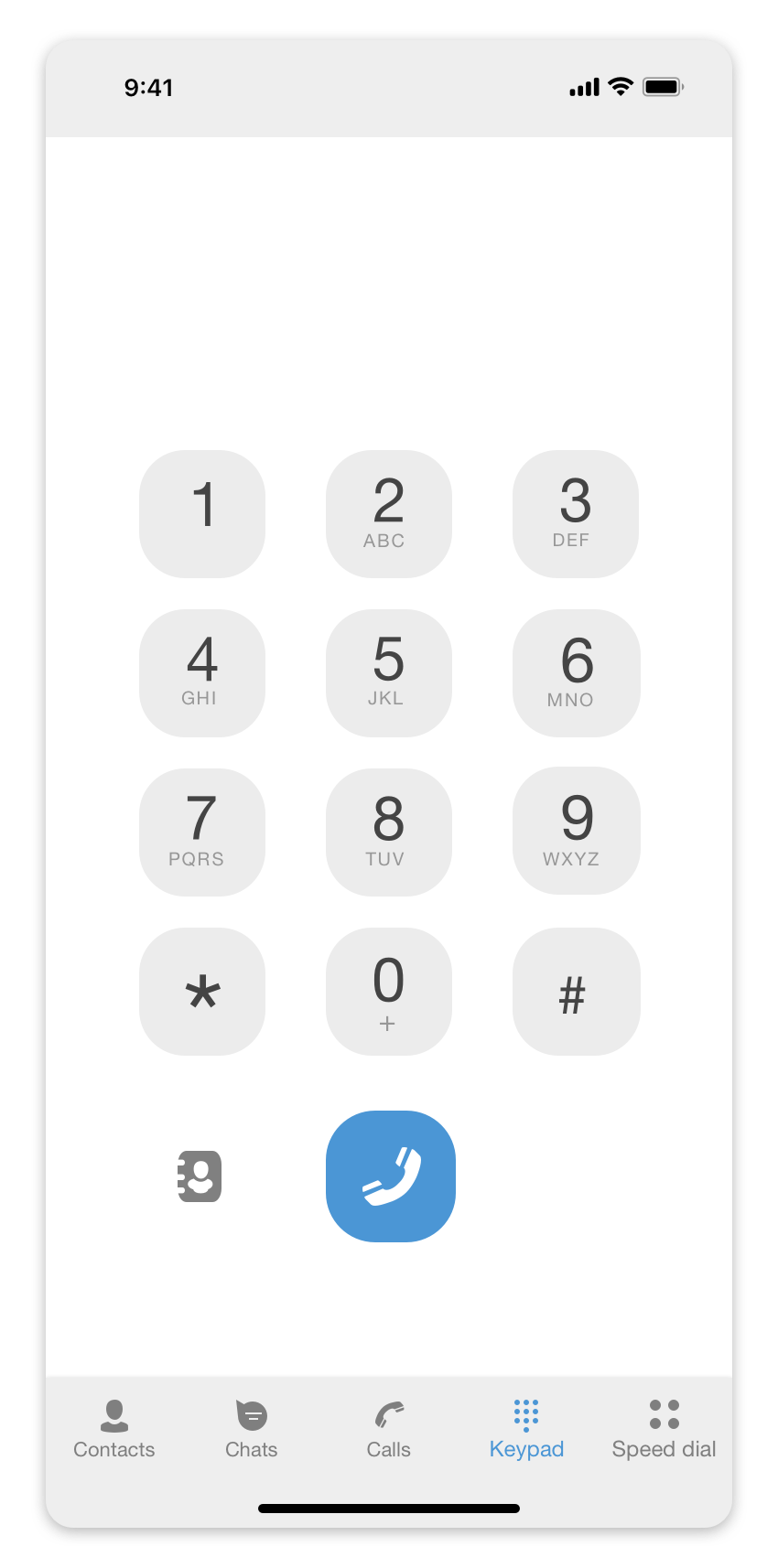
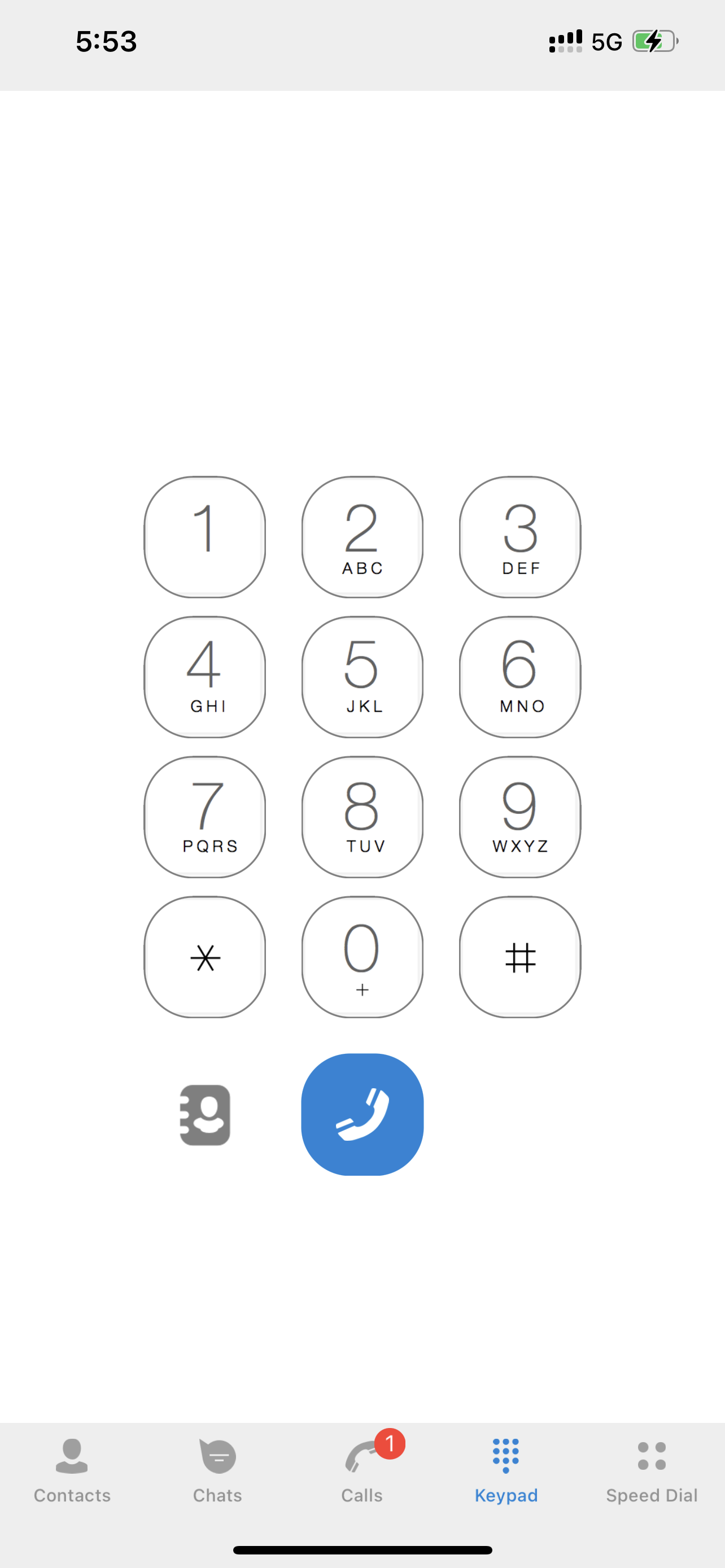
To place a call using your numeric keypad, press the Keypad button, then dial the destination phone number as if you were sitting at your desk. You may also paste a telephone number that is copied to your clipboard. Simply press and hold in the whitespace above the keypad area. The phone number in your clipboard will automatically paste onto the screen.
To access the contacts that are stored on your smartphone, press the Keypad button, then press the phonebook icon to the left of the “call” button.
To access the company directory, press the Contacts button. Your organization’s directory will appear on this page. A red light by their name indicates that they are on an active call.
Find the keypad
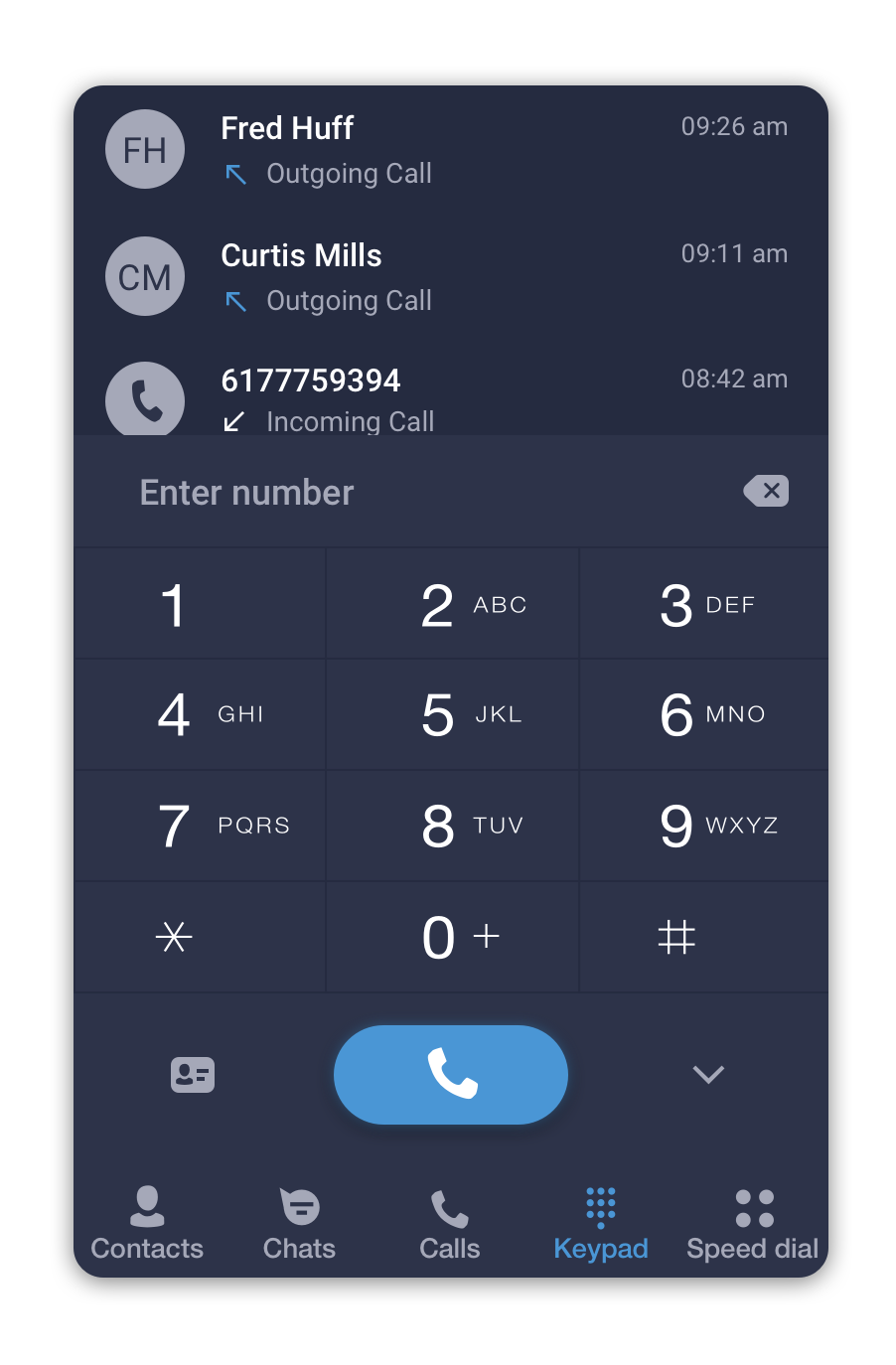
On Android, the keypad and calls tab look like this:
On iPhone, the keypad is available from the bottom navigation: