CALLING APPS
Enabling Click-to-Call
This feature is only supported on Windows operating systems at this time
The click-to-call (or click-to-dial) feature lets you dial phone numbers by clicking specially formatted links on websites, CRM or other web or native applications.
How does it work?
It works by associating the Ringotel desktop client (currently supported on Windows only) as a default app for the tel: and callto: protocols in the operating system. After that, the system will launch the associated app when clicking on the tel: or callto: links in any web or native application that supports functionality.
On the web pages where phone numbers are not formatted as either tel: or callto: links, there are third-party extensions that are compatible with Google Chrome. A popular extension, Telephone Number Detection, parses a web page and turn any phone number it could find on the page into the properly formatted links, enabling click-to-call functionality.
Please note that we are unable to provide support on behalf of third party extensions
Enabling click-to-call
To enable click-to-call functionality:
Firstly, install the Ringotel desktop app on your Windows device.
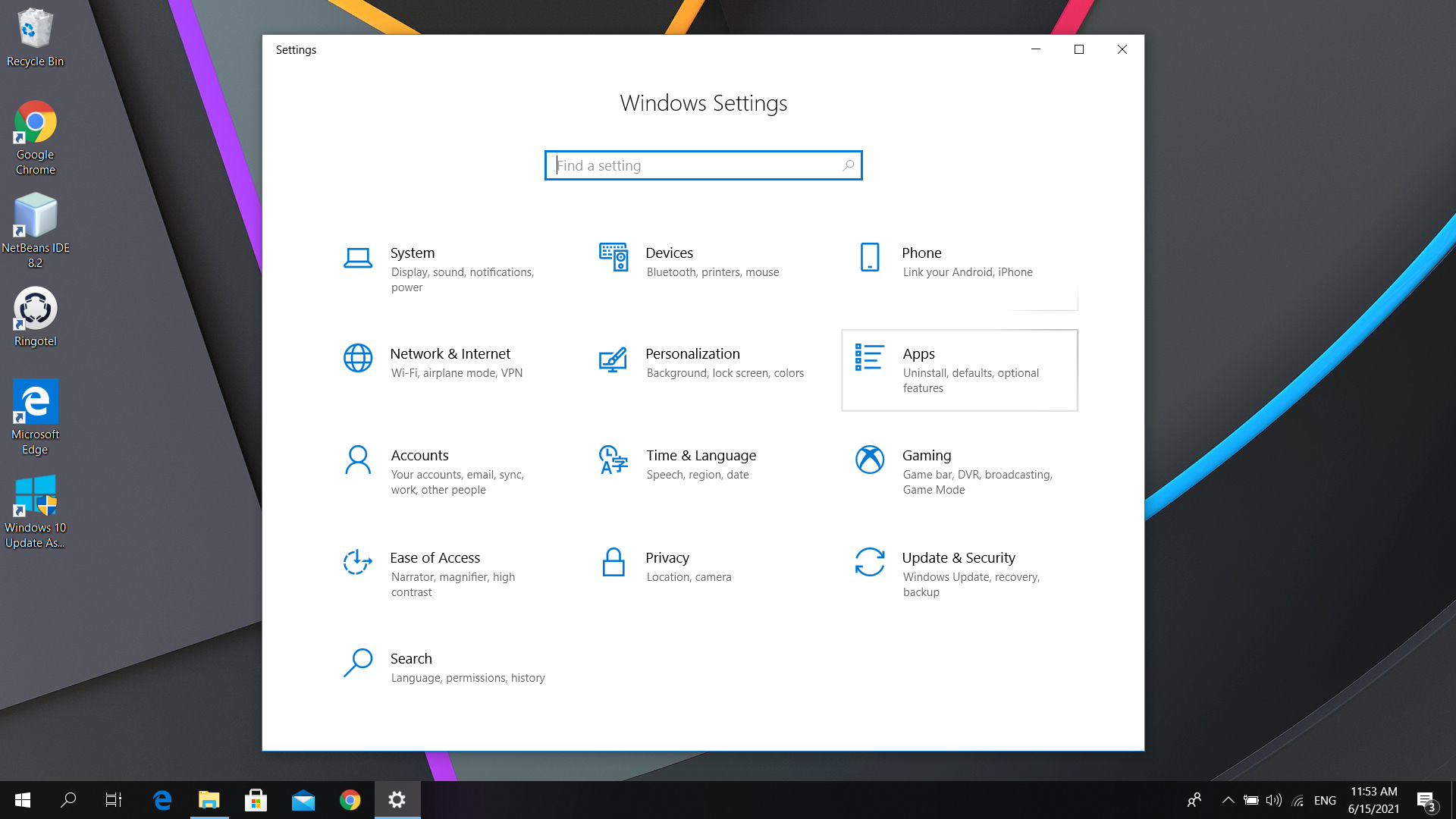
On the Start menu, select Settings > Apps > Default apps. You may have to right-click on the Start menu in order to access the Settings page.
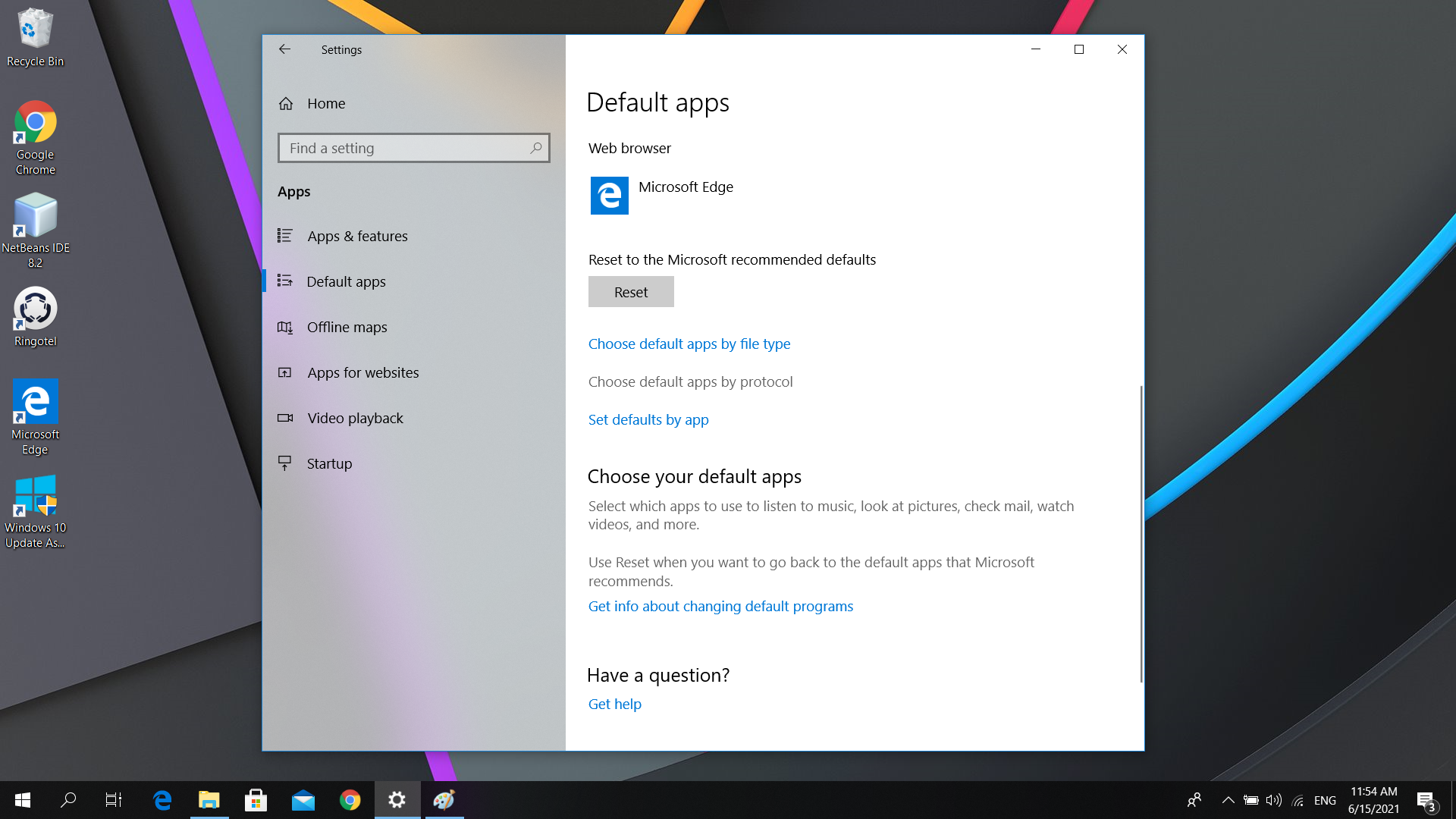
Scroll down and navigate to Choose default apps by protocol, or Choose default apps by link type.
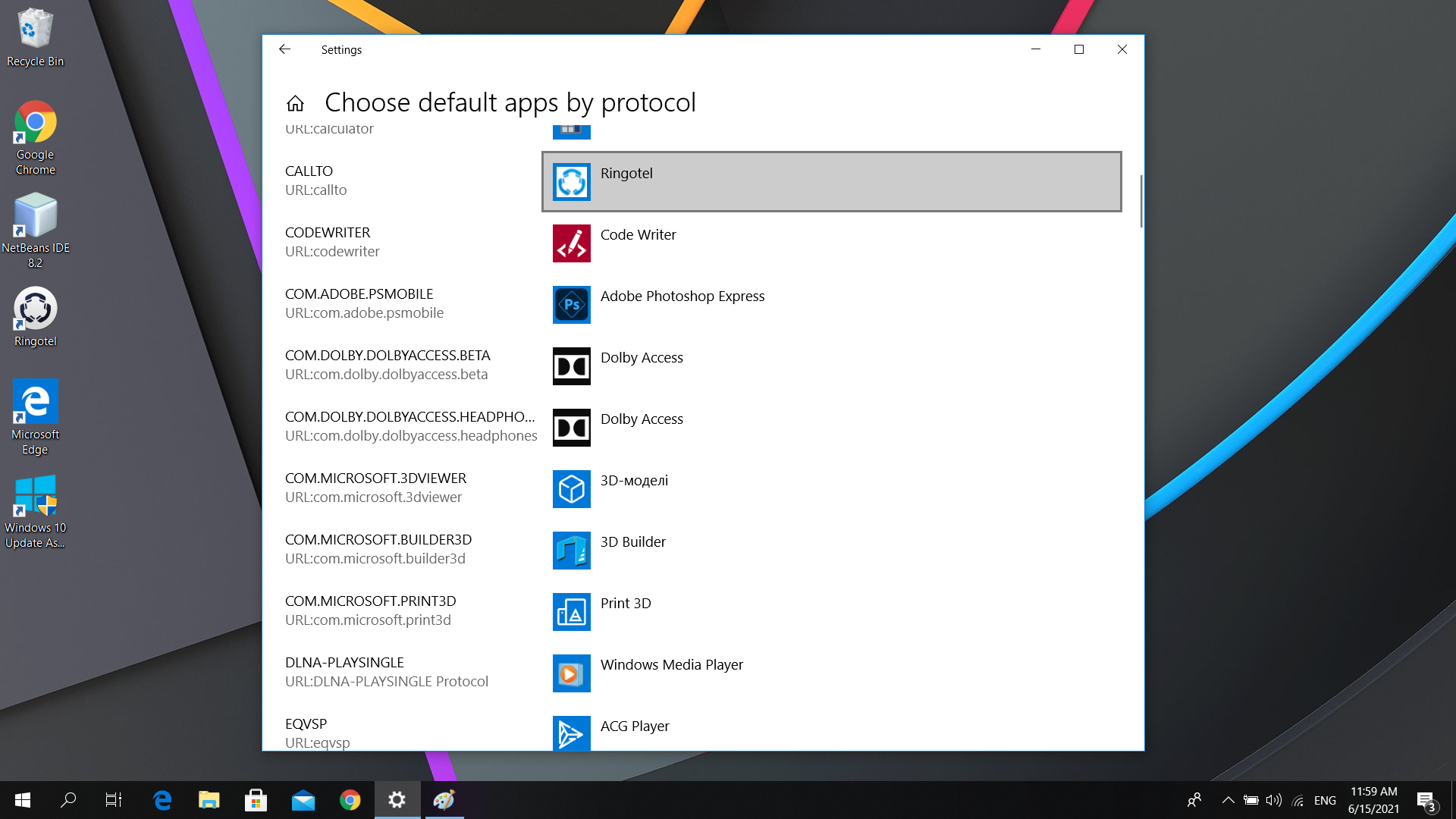
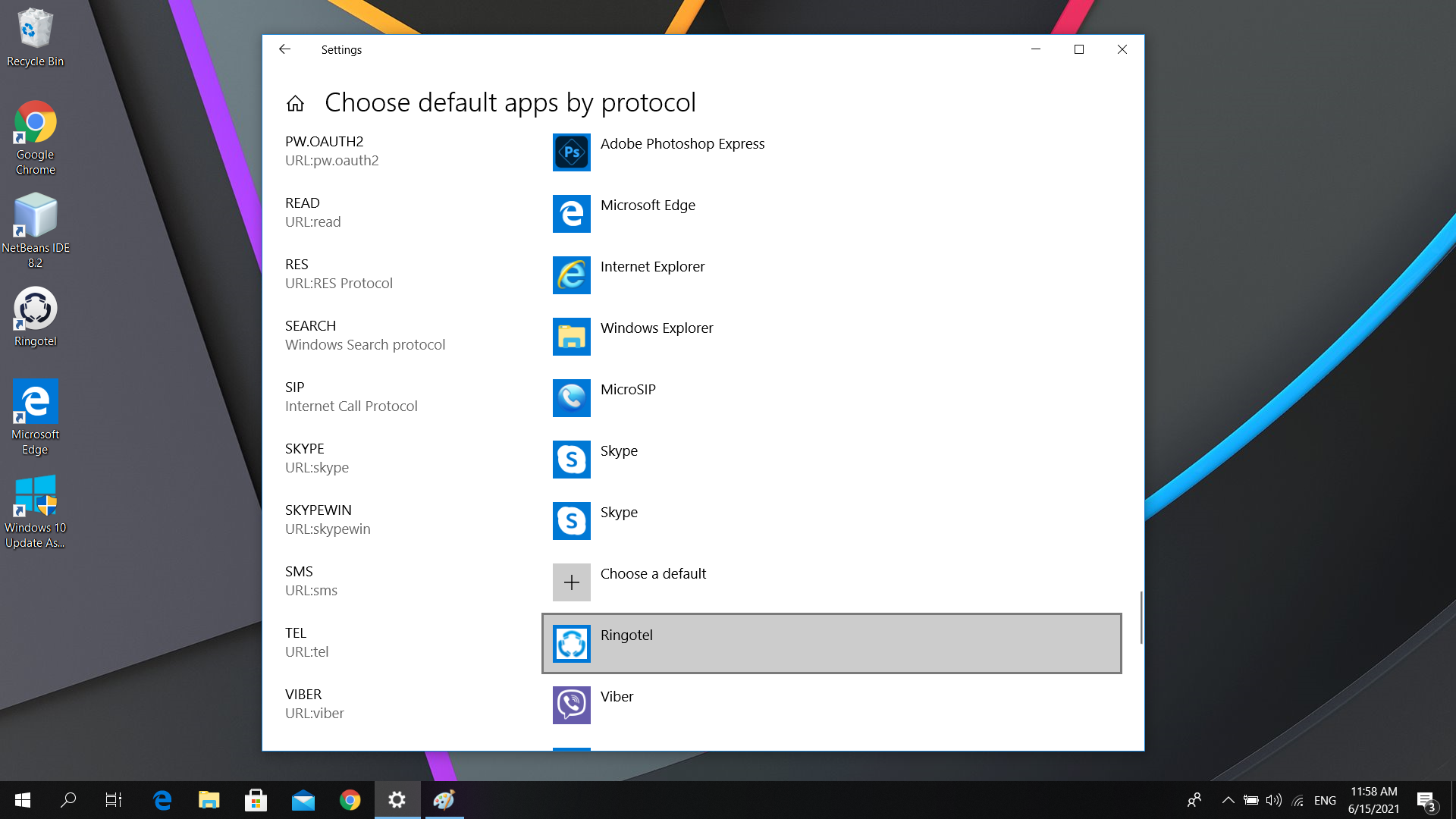
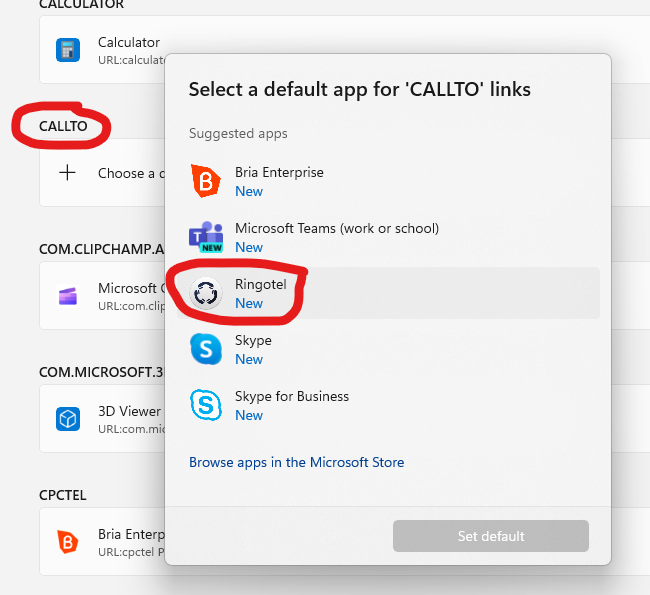
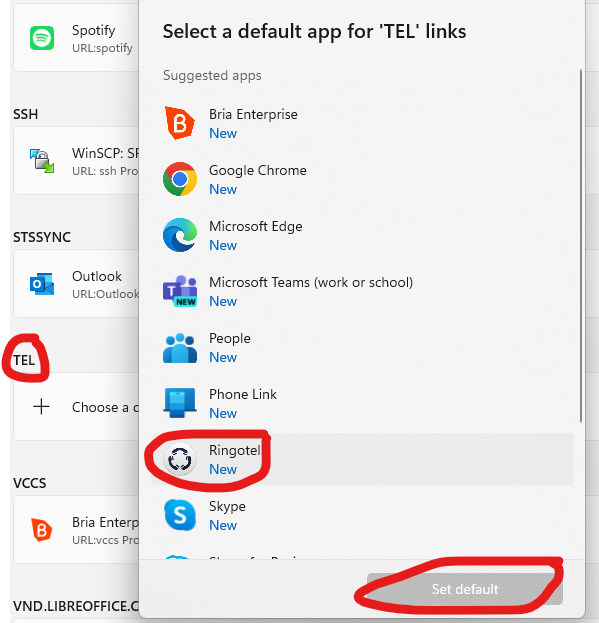
In the list of protocols, associate the Ringotel app to the CALLTO and TEL protocols.
Article attachments 6
- 17175ced-cee1-435b-8c1a-f21c12d07f7c-20240208-135000.png
- f77944d9-efe5-46a8-958c-915f07c5aa12-20240208-135034.png
- 67cee5b5-7bef-4ac5-85ce-af0f822d1a02-20240208-135058.png
- 87f2bb97-c494-4761-b753-e34f37dd47ff-20240208-135114.png
- Screenshot 2024-02-08 085352-20240208-135419.png
- Screenshot 2024-02-08 085458-20240208-135519.png