
CALLING APPS
Change your Ringotel password
Change the password you use to sign in to Ringotel on your iPhone, Android phone or Windows computer. You will need your current Ringotel password.
If you have forgotten it, contact your company’s phone administrator or Junction support for a reset. Never send your password in a support message or screenshot.
iPhone
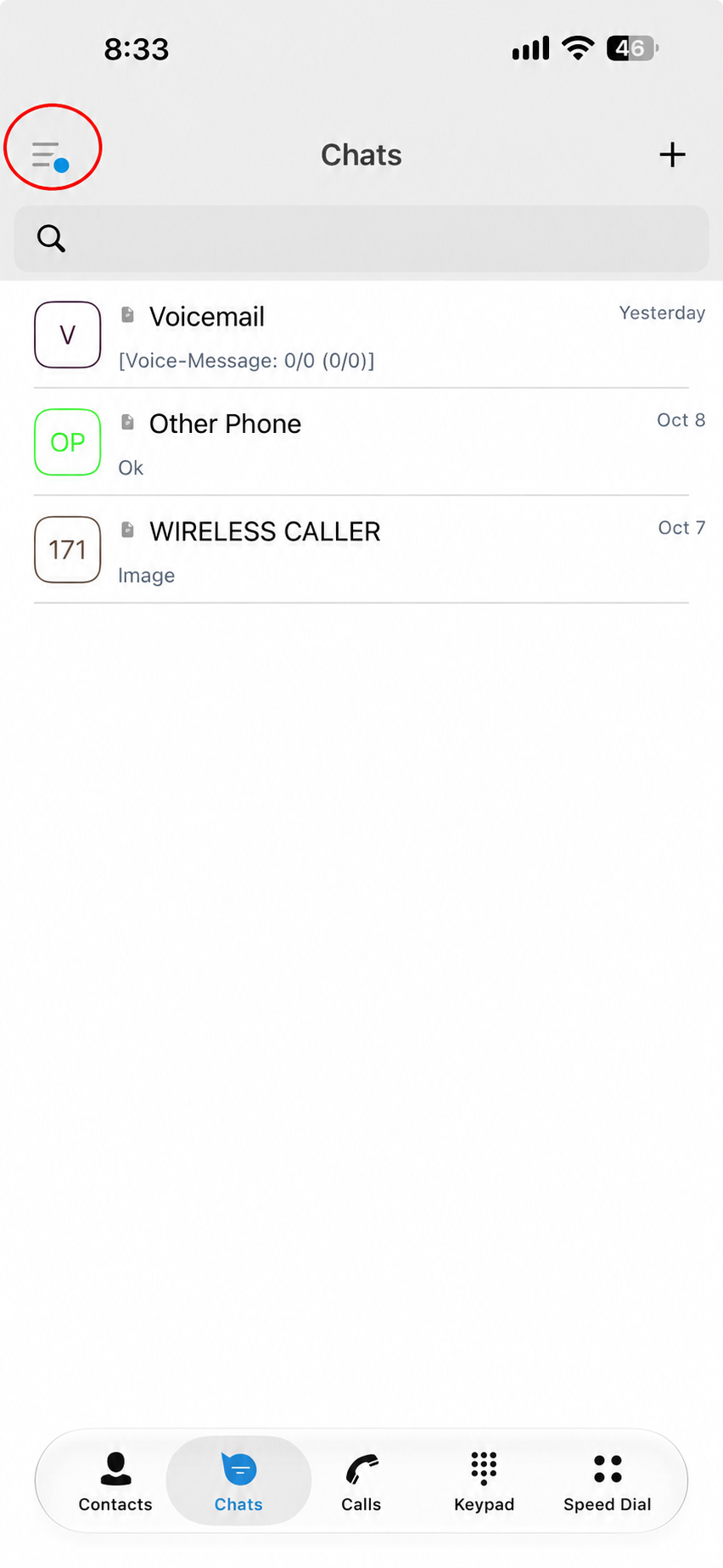
- Open Ringotel. From Chats, tap the Menu icon in the upper-left corner, highlighted below.
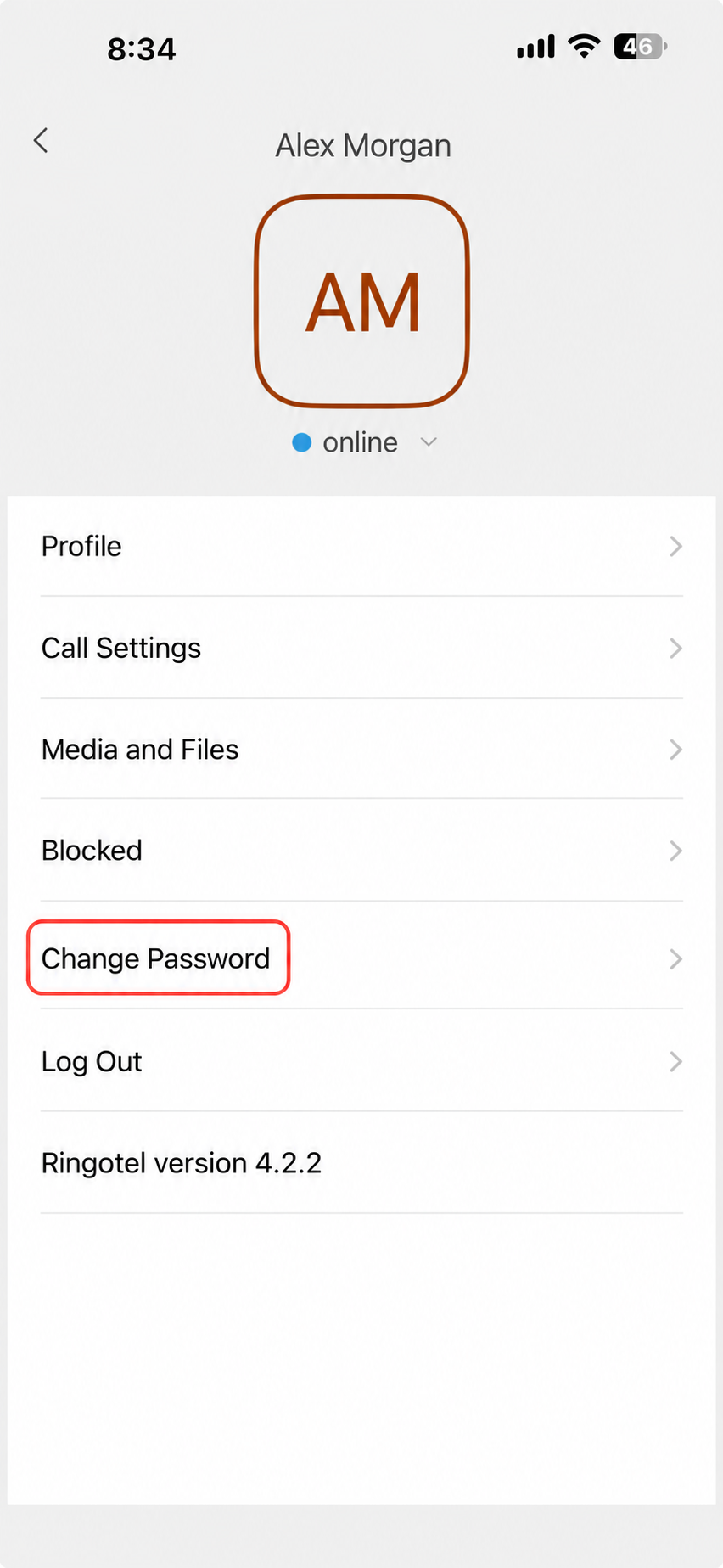
- Tap Change Password.
- Enter your current password and your new password. If a confirmation field appears, enter the new password again.
- Submit the change using the confirmation control on that screen. Follow any password requirements shown by the app.
Android
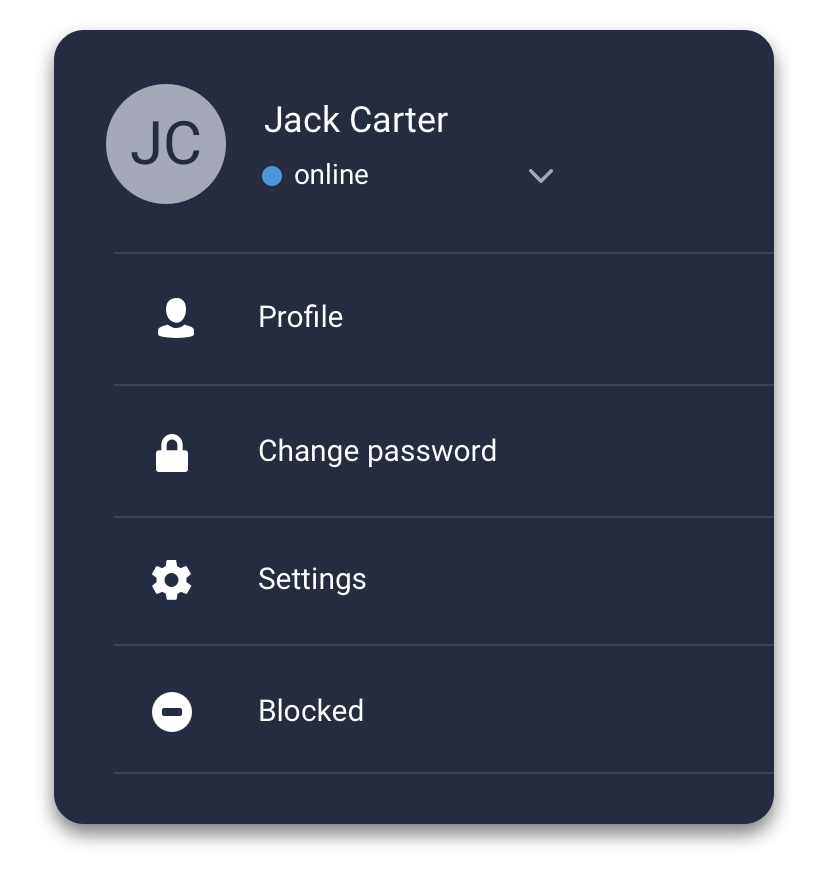
- Open Ringotel and select the Menu tab.
- Tap Change password.
- Enter your current password and the new password. Re-enter the new password if the app asks you to confirm it.
- Save or confirm the change using the control shown on the password screen. Follow any password requirements displayed.
On older Android versions, the option may be under Profile → pencil/edit icon → Change password.
Windows
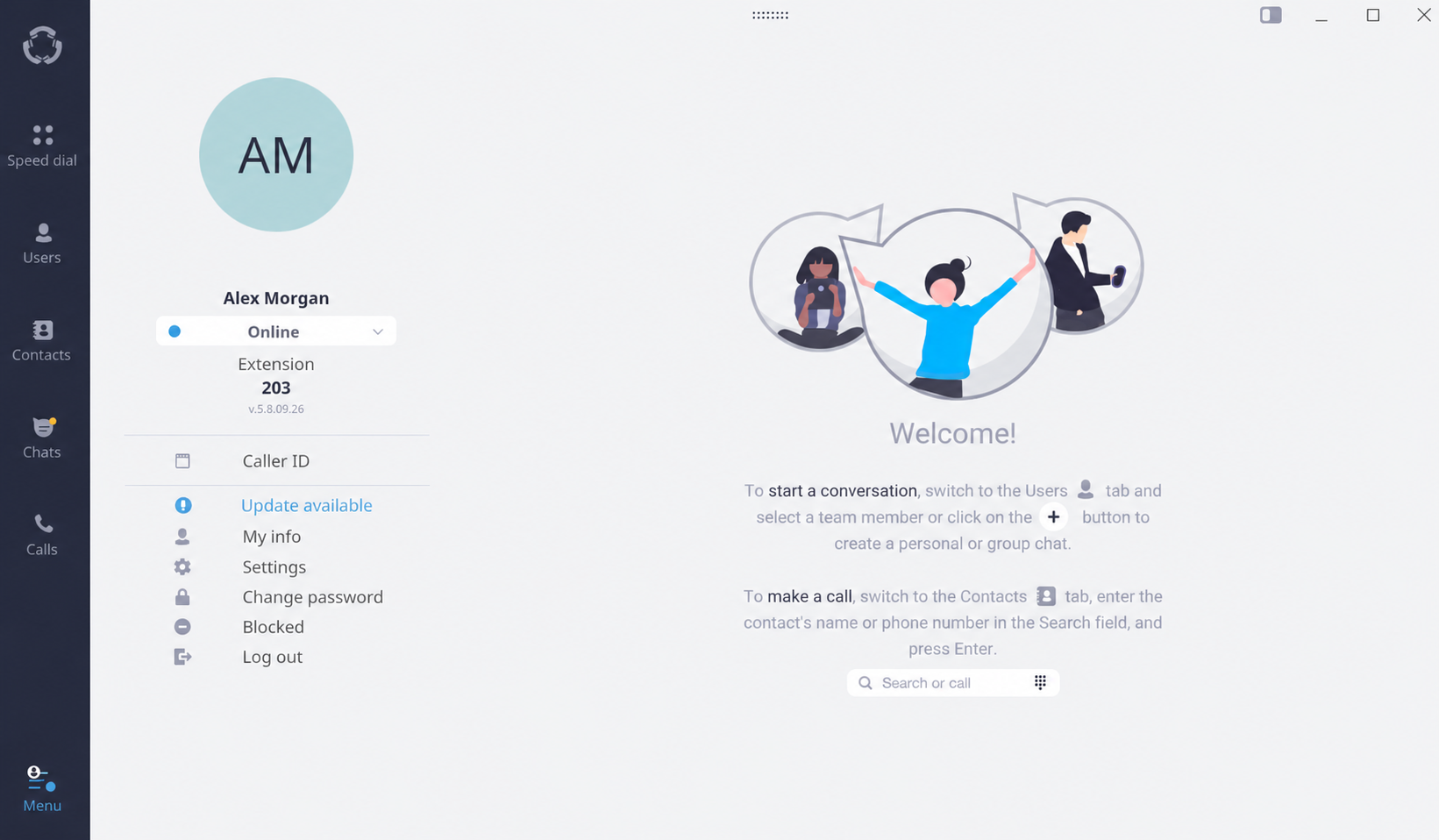
- Open Ringotel and click Menu at the bottom-left.
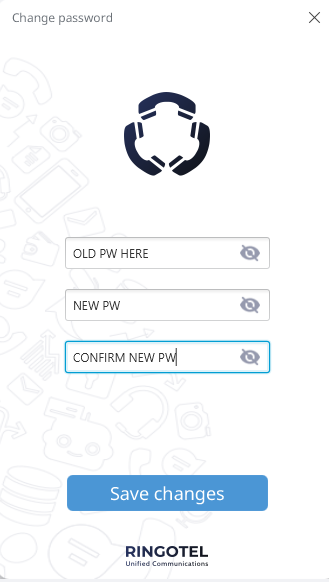
- Click Change password below Settings.
- Enter your current password in the top field.
- Enter your new password in the middle field.
- Enter the same new password again in the bottom field.
- Click Save changes.
After changing your password
If Ringotel asks you to sign in again on any of your devices, use the new password. Update your saved Ringotel password in your password manager.
If the change does not work
- Check that you entered your current Ringotel password, rather than a voicemail PIN or a password for another service.
- Make sure the new-password and confirmation fields match, and meet any requirements displayed.
- If the current password is unknown or rejected, ask your company’s phone administrator or Junction support to reset it.
When asking for help, include your device type and the error message. Keep passwords out of screenshots.