CALLING APPS
Transfer & Park
During an active phone call, you have the ability to transfer a call to another phone number or extension, as well as to a parking lot.
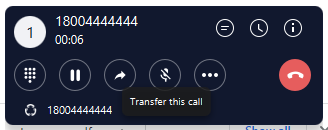
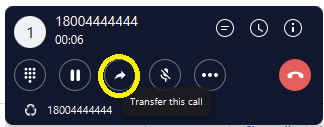
While on an active call, press the Transfer button (highlighted in yellow)
Your company directory will appear. Select the coworker you’d like to transfer the call to. You will then be prompted two options:
Attended Transfer: Ask permission from the intended recipient of the call. Once the intended recipient confirms to you that they want to receive the call, you can complete the transfer.
Blind Transfer: Send the call right through without asking permission. There are no additional steps required when selecting this option.
Alternatively, you may park the call. Instead of selecting from your company directory, you can select one of the parking lots that are available.
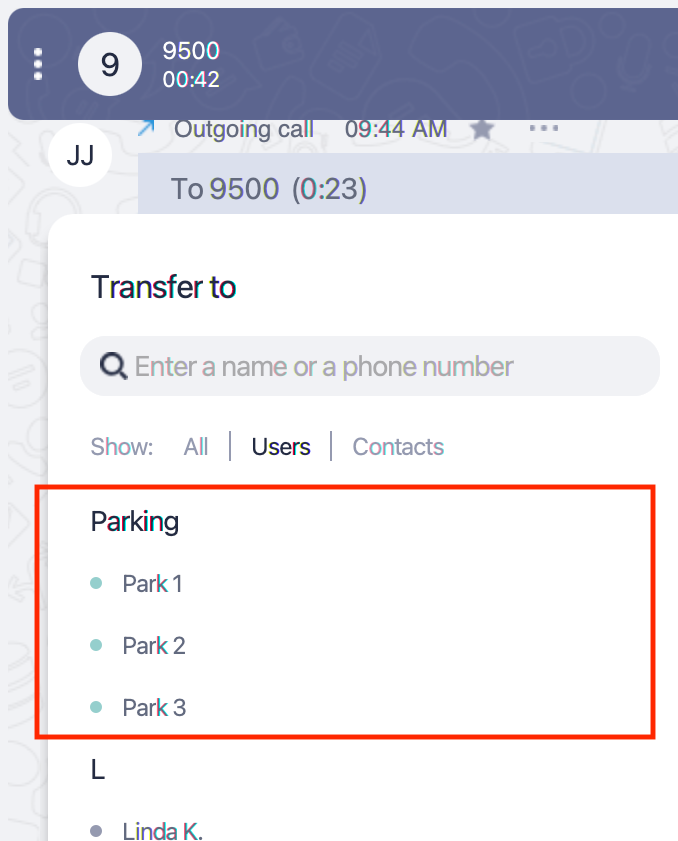
Once the call is parked, any phones within your organization that are monitoring parking lots will show that the call is parked, and they may retrieve the call.
To retrieve a parked call from the Ringotel app:
Navigate to the Users tab
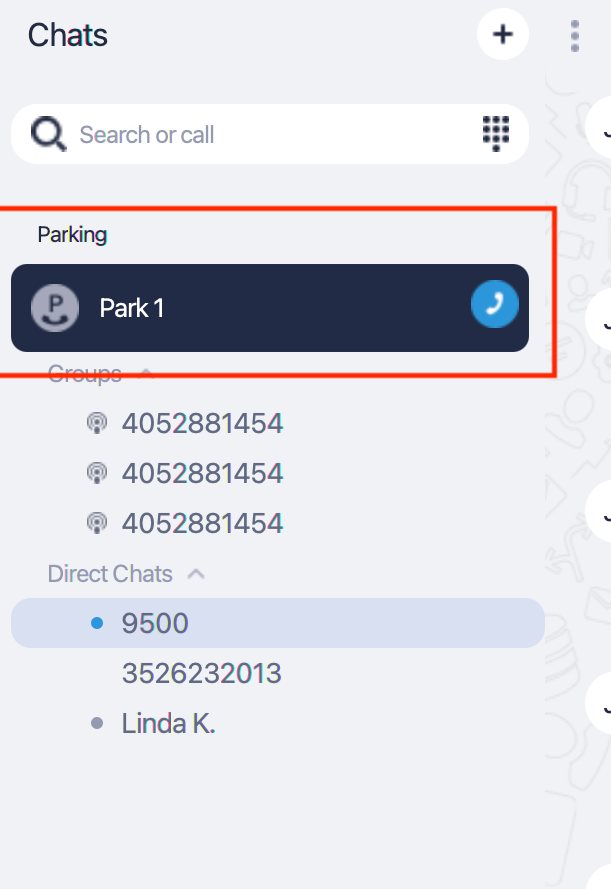
All parked calls will appear at the top of the page. If there are no parked contacts displaying, there are no parked calls. The caller may have hung up, or another coworker retrieved the call.