
CALLING APPS
Chat / Instant Messaging
Using the desktop app, you can send an instant message to a colleague directly via ‘Personal’ chat or to a group of colleagues using a ‘Group’ chat.
The ‘Chats’ tab is where all your chat conversations, all the messages you’ve sent and received, are displayed.
It is also where you can create a new ‘Personal’, ‘Group’ or ‘SMS’ (if applicable) chat.
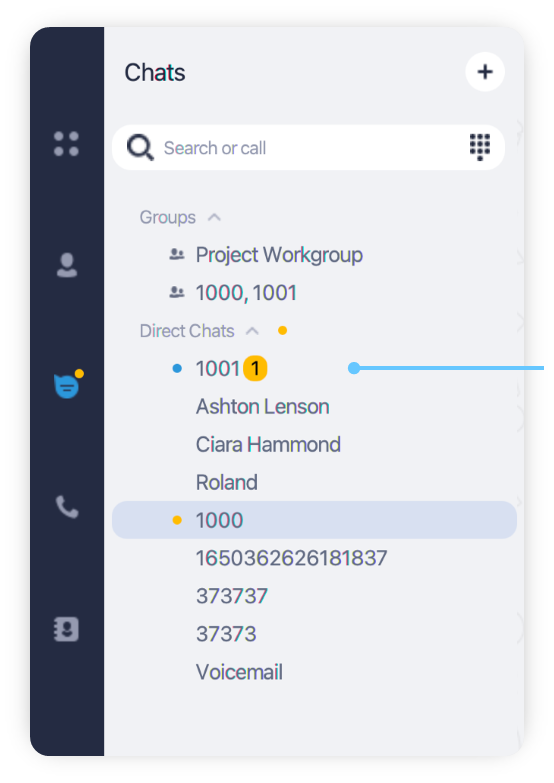
To start a new conversation:
Click the Chat icon, then press the + button on the top right corner
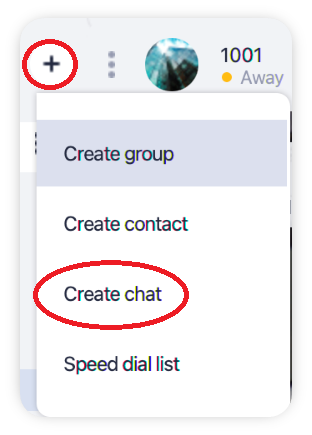
Select the colleague that you would like to chat with. The chat window will appear, and any message history will also show.
Creating a group chat
Click the Chat icon, then press the + button on the top right corner
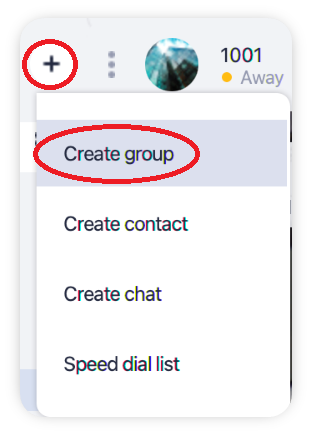
Choose Create group from the drop-down menu
In the New Group window enter the name of a group chat and choose participants you want to add to a group chat.
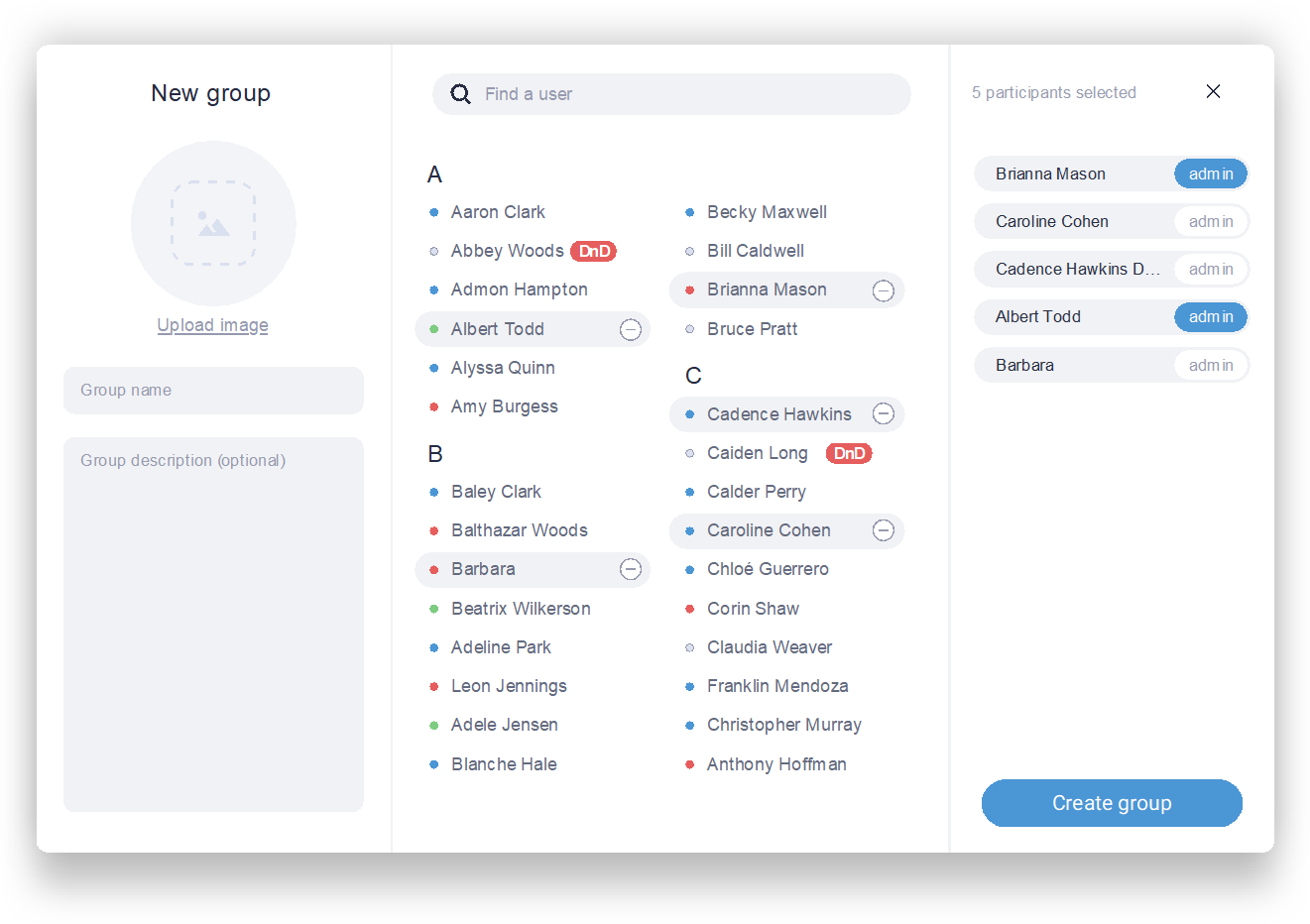
Click admin if you’d like to give user admin rights
Click on the Create group button
Adding and removing participants in a group chat
You can assign Chat Admins only to a group chat which you have created, or during chat creation process. A Chat Admin can add and remove participants in a group chat.
To assign a Chat Admin:
Open a Chat Details panel by clicking the “i” icon at the top right corner of a chat panel
Click on the “…“ icon next to the participant you want to make a chat admin
Select Administrator from the drop-down menu to assign or remove admin privileges
Adding/removing users in a group chat
Only administrators and the one who created the group can add or remove participants. To add/remove a participant:
Open a Chat Details panel by clicking on the “i” icon at the top right corner of a chat panel
Click on the + icon
Click on users to add or the “-” icon next to their names to remove them from a group chat
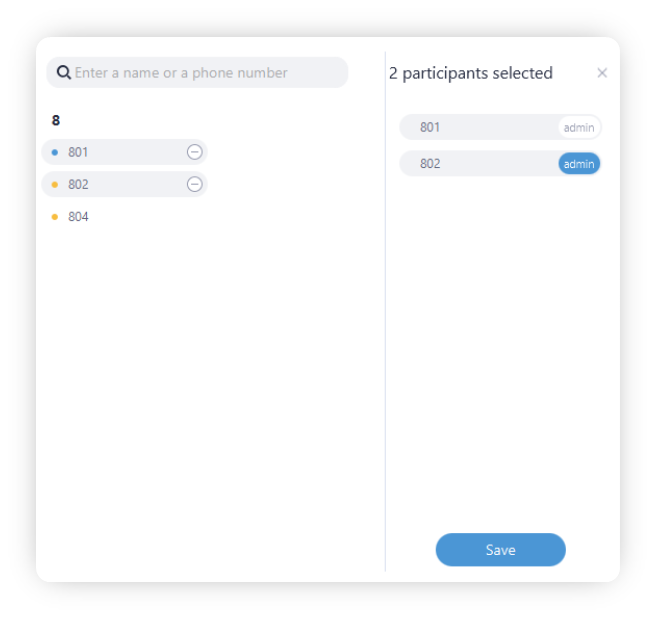
Click on the Save button