CALLING APPS
Placing Calls
Once you installed and logged into the Ringotel app, you will want to set up your microphone and speakers/headset to work with the app.
All calls from the Ringotel app will appear as if you are at your office. The receiving party will see your office’s Caller ID on their display.
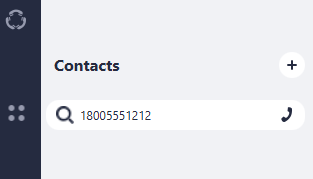
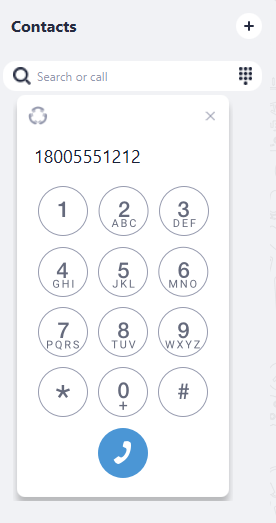
You may place a call by pressing on any of the left icons (Directory, Chat, Calls, Contacts). The phone number can be typed out, or you can press the keypad button to manually dial the phone number. Press the phone icon (or press Enter/Return on your keyboard) to place the call.
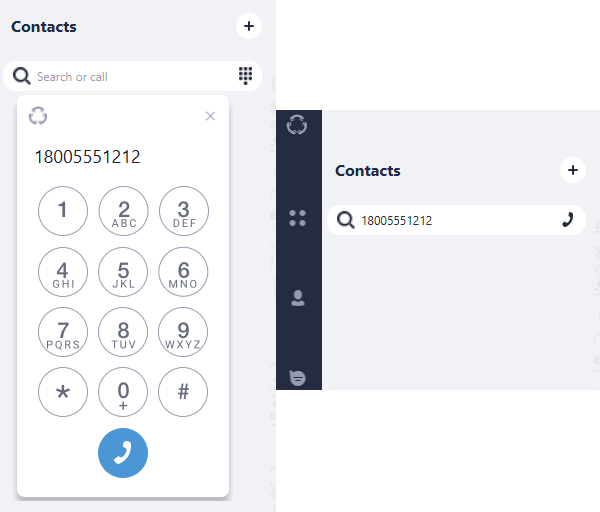
To access the company directory, press the Users icon. Your organization’s directory will appear on this page. A red light by their name indicates that they are on an active call.