
PHONE GUIDES
Get to know your phone
Use the buttons below the display to choose the words shown on screen. These are called soft keys: their labels change during a call. Use the arrow keys to move through lists and the centre button to select.
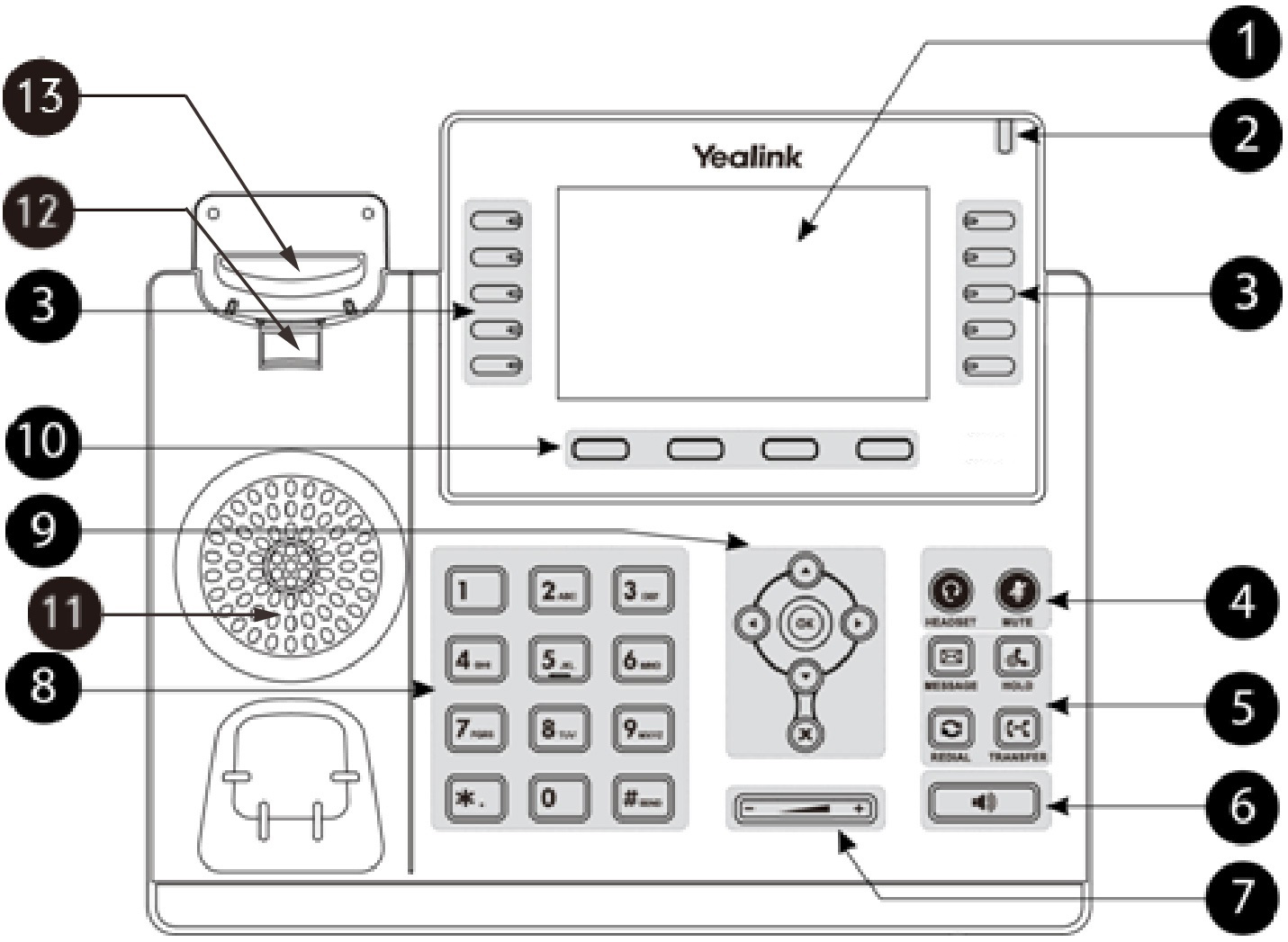
| Button in the picture | What it does |
|---|---|
| 3 · Line keys | Choose the extension, contact or Park label beside a key. |
| 4 · Headset and mute | Choose a connected headset or switch your microphone off. |
| 5 · Call buttons | Messages, redial, hold and transfer keys. |
| 6 · Speaker | Use hands-free audio. |
| 7 · Volume | Adjust the ringtone while idle or the audio during a call. |
| 9 · Navigation keys | Move through lists; press OK to select. |
| 10 · Soft keys | Choose the label immediately above the button. |
The T44 has fewer line keys and a smaller screen than the T46U shown. Follow the labels on your own phone.
Find your way around
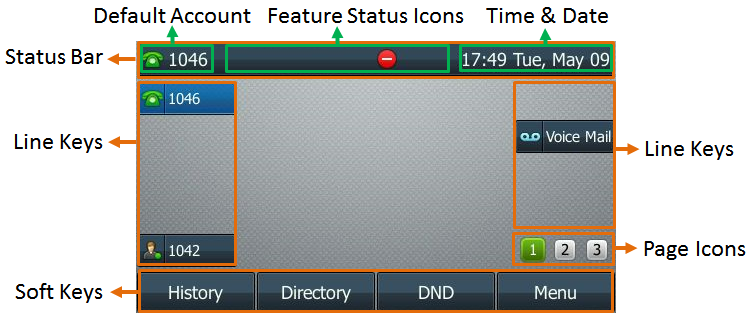
The buttons beside the display are line keys. They may show your extension, coworkers or shared Park positions. A button marked More reveals extra actions; a page key reveals more line-key labels.
Before your first call
Check that your extension appears on screen. If you see “No service”, “Unregistered” or a network error, open the troubleshooting guide before changing any settings.