
PHONE GUIDES
Get to know your phone
Use the buttons below the display to choose the words shown on screen. These are called soft keys: their labels change during a call. Use the arrow keys to move through lists and the centre button to select.
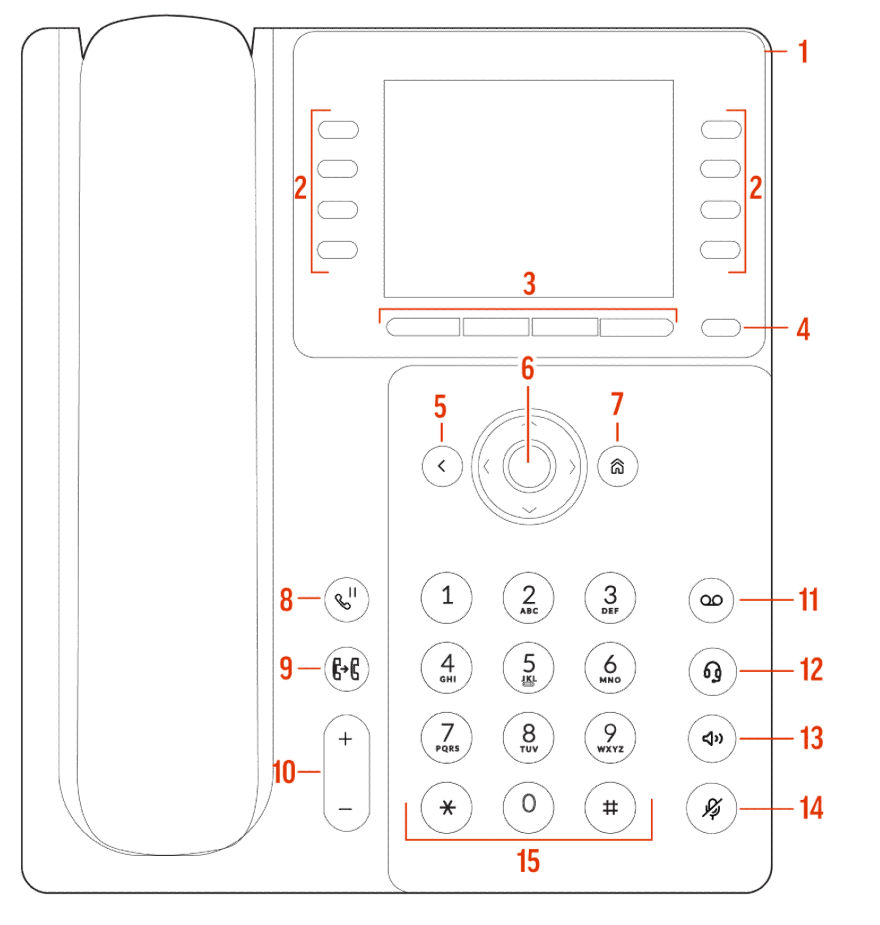
| Button in the picture | What it does |
|---|---|
| 2 · Line keys | Choose the extension, contact or Park label beside a key. |
| 3 · Soft keys | Choose the action immediately above the button. |
| 4 · Page key | See another page of line keys. |
| 6 / 7 · Arrows and Home | Move through menus; open the main menu. |
| 9 · Transfer | Send a caller to someone else. |
| 10 · Volume | Change call volume during a call or ringtone volume while idle. |
| 12 / 13 / 14 · Headset, speaker and mute | Choose where you hear the call, or switch your microphone off. |
Other Edge models have different numbers of line keys; follow the label beside each key.
Find your way around
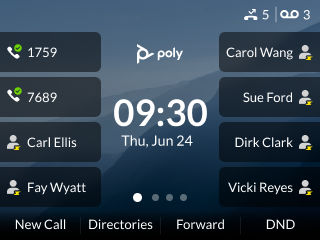
The buttons beside the display are line keys. They may show your extension, coworkers or shared Park positions. A button marked More reveals extra actions; a page key reveals more line-key labels.
Before your first call
Check that your extension appears on screen. If you see “No service”, “Unregistered” or a network error, open the troubleshooting guide before changing any settings.