ADMIN PORTAL
Voicemail
Applications → Voicemail
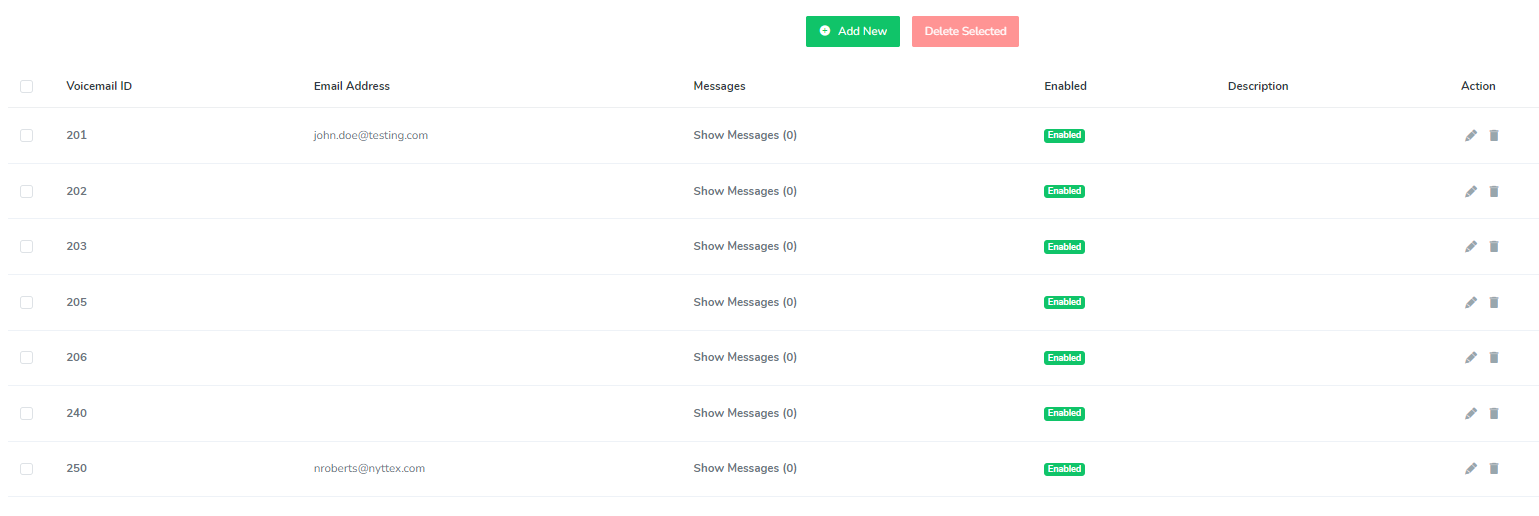
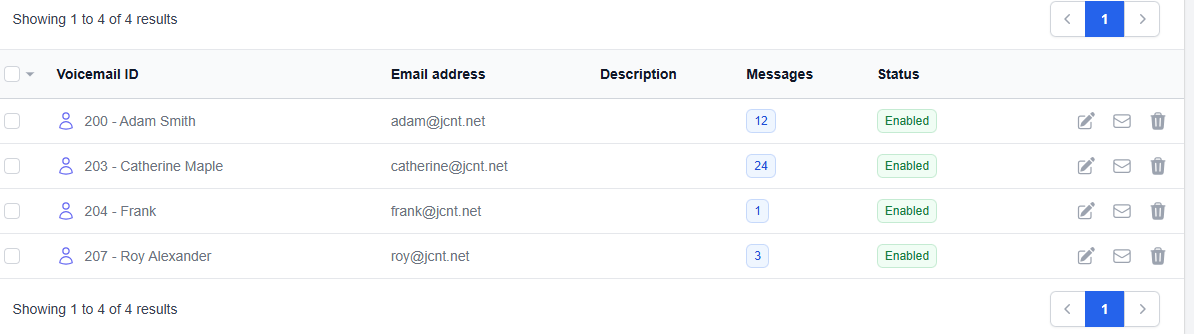
The voicemail page allows you to view your organization’s voicemail settings. You can also add a virtual voicemail for a special need, such as an after hours mailbox.
Configurable options when editing a mailbox:
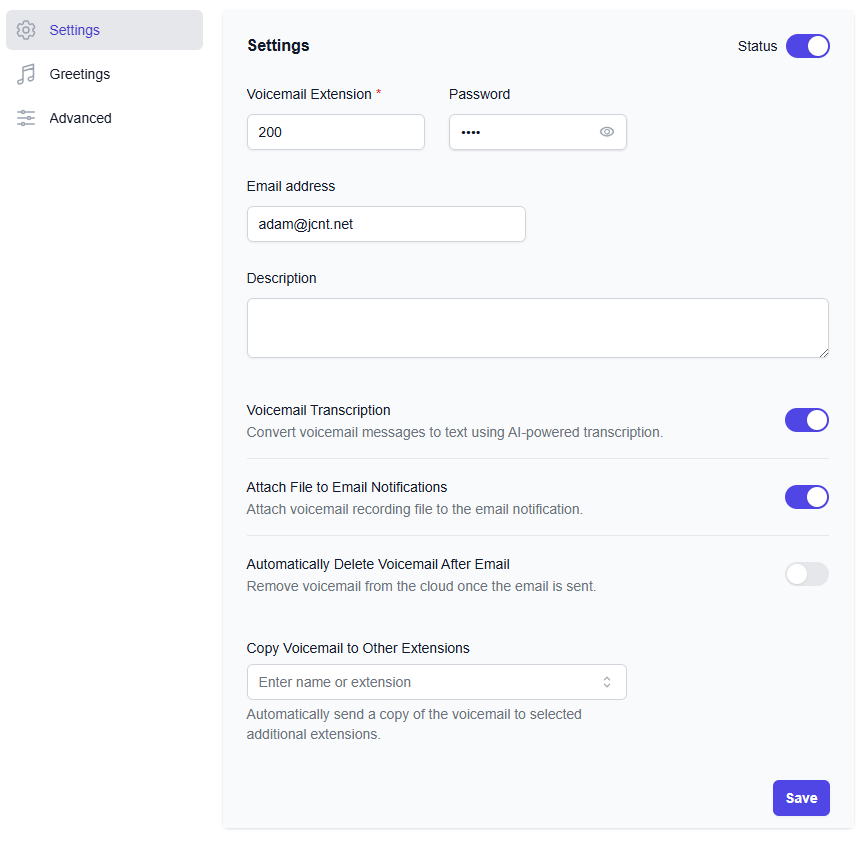
Settings Menu
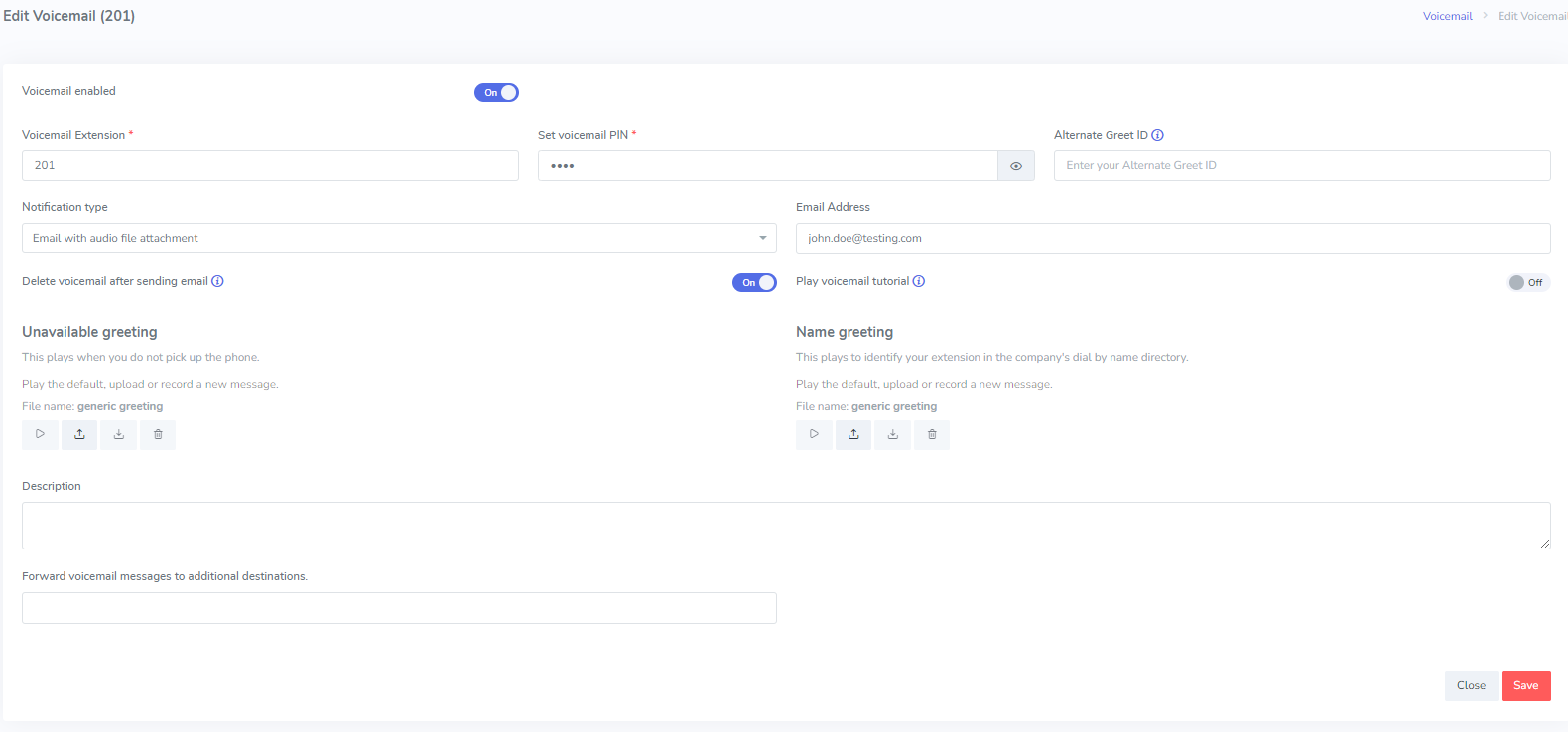
Status toggle: Ability to Enable/Disable your extension’s voicemail.
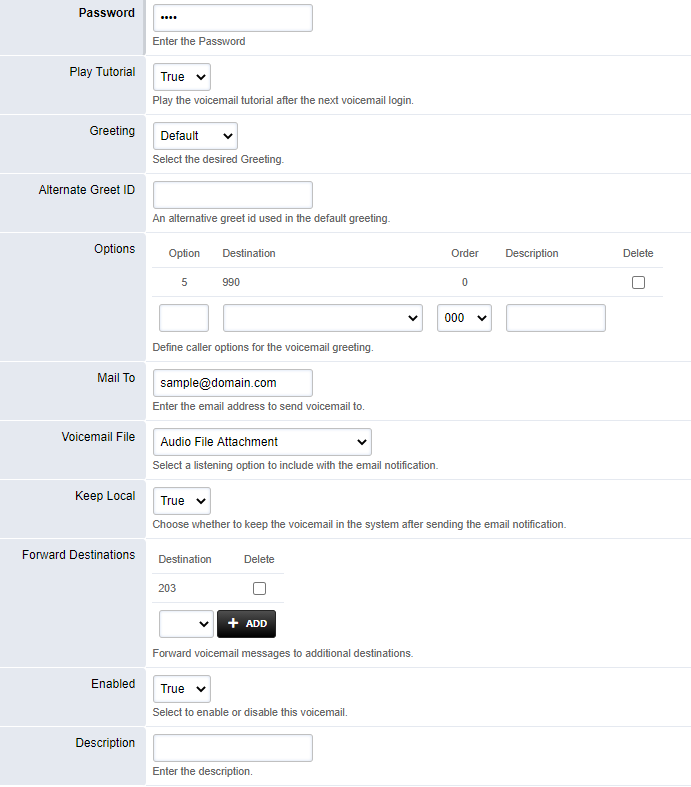
Password: Voicemail PIN that callers will enter when checking voicemail from the outside
Voicemail Transcription: If an email address is specified, transcribe all voicemails upon email delivery.
Attach File to Email Notifications: Attach a wav file of the voicemail recording
Automatically Delete Voicemail After Email: Once the voicemail is emailed, delete a copy from the server. This will ensure that the mailbox does not exceed its size limit if the user exclusively checks voicemails via their email and does not manually clear out the voicemails from their physical extension.
Greetings Menu
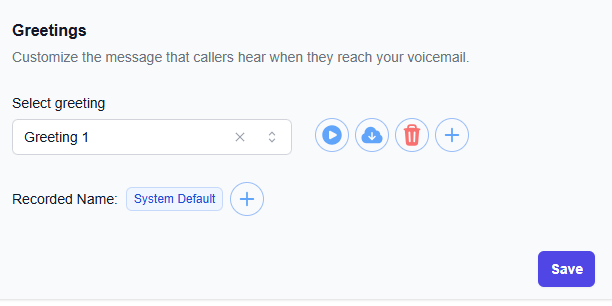
Select greeting: this is the greeting that callers will hear upon reaching the extension’s voicemail. To change the greeting, press the + button., and the below will be prompted:
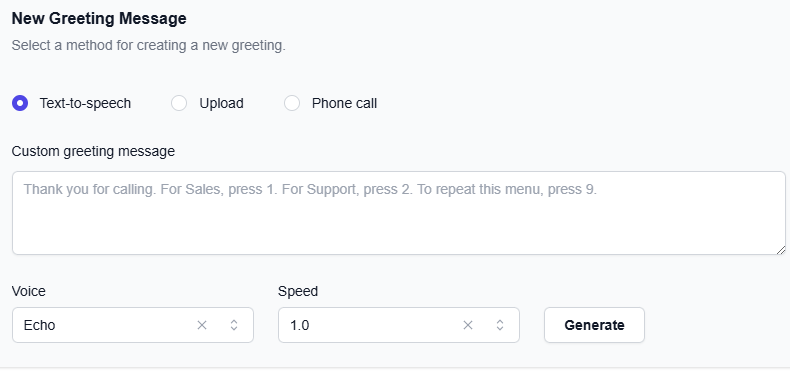
To generate a recording using AI, use the Text-to-speech option. Enter a greeting that you want AI to generate. The greeting must be entered precisely, and with proper grammar, and without abbreviations. This also means that you may have to alter the spelling for foreign names, in order for the pronunciation to be as accurate as possible. Select a voice, and press Generate. Echo (American male) and Nova (American female) are the voices we recommend.
Example, setting up an AI greeting for Frank Veyrecia. Notice the spaces between numbers, the amount of commas, and how Veyrecia was modified to "Vayreesha" for the purposes of getting the name correctly pronounced: You’ve reached the voicemail of Frank Vayreesha. I am unavailable to take your call at the moment, so please leave a message, including your name, company name, phone number, and the reason for your call. I will return your call at my earliest convenience. If this is an urgent matter, please send an email to, frank, at, company name, dot, com.
After the recording has generated, you will be able to play it. If you are satisfied with the recording, press Apply. You can rename the recording by pressing the pencil icon.
Press Save once satisfied.
To upload a recording of your choice, press the Upload button. You may upload a wav or mp3 file in any format.
To record a greeting with your voice, press the Phone call button and follow the directions outlined in the Voicemail Check & Manage article.
Advanced Menu
Mobile Number to Receive Voicemail Notifications: Optionally, you can specify a phone number to receive text message notifications for new voicemails. Enter an 11-digit telephone number (1 + Area Code + 7 Digit Number) without any spaces or dashes to receive text message notifications.