
ADMIN PORTAL
Ring groups
A ring group sends incoming calls to a team, such as reception or customer support. Use its settings to choose who rings, how long they ring, and where callers go when nobody answers.
Select any screenshot to enlarge it. Close the popup to return to the guide.
Open your ring group
- Open Ring Groups in your administrator portal.
- Find the group you want to change and open its editing screen.
- Choose Settings. The members and unanswered-call destination are on the same scrolling form.
The Name identifies the group. Keep its existing Extension number when you are only changing members or call handling.
Add a member
- Under Members, open the Add Member(s) dropdown. Search by name or extension if needed.
- Select the extension. Its member card appears in the list.
- Check the new member’s Delay and Ring For. Match the other extensions when they should ring together for the same duration, or choose the custom timing you need.
- Check that the member’s Active switch is on if they should receive group calls.
- Scroll to the bottom and select Save.
Check the timing before saving. Selecting a member is only part of the change. Set both Delay and Ring For appropriately—either to match the existing members or to the custom values you want.
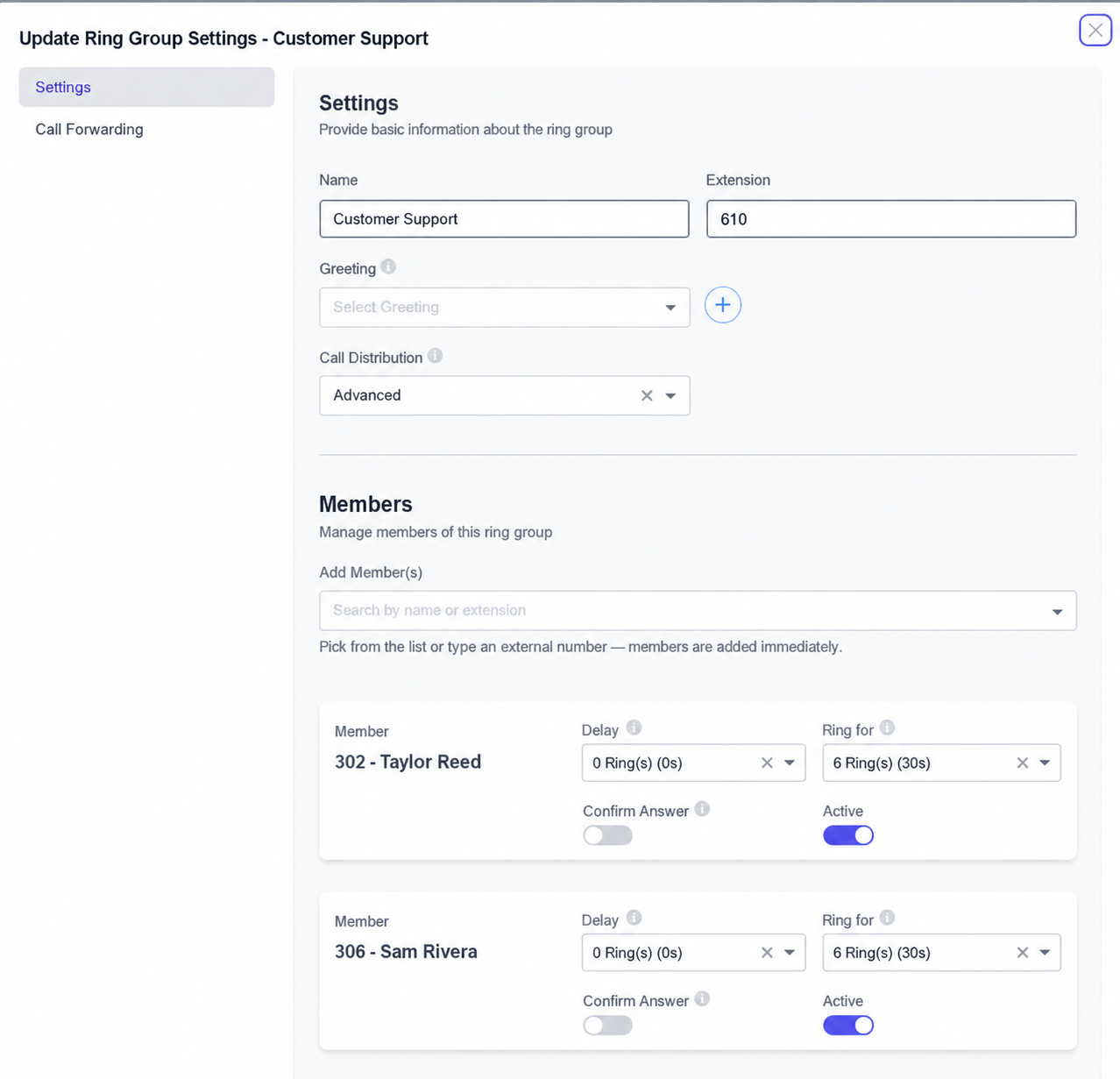
What Delay and Ring For mean
- Delay: how long to wait before starting to ring that member. A delay of 0 Ring(s) (0s) means no added delay.
- Ring For: how long that member’s destination should ring.
In this example, the members have a delay of 0 seconds and a Ring For value of 6 rings (30 seconds). To give a new member the same timing, select those same values. These are example settings, not required values.
To adjust an existing member, change the values on their card and select Save at the bottom of the form. Leave Call Distribution unchanged unless you intend to change how calls are distributed.
Choose where unanswered calls go
- Continue down the Settings form to When no one in ring group answers.
- Under Choose Action, select how to handle the call.
- Select the matching Target. For example, choose Voicemail and the team’s mailbox.
- Select Save.
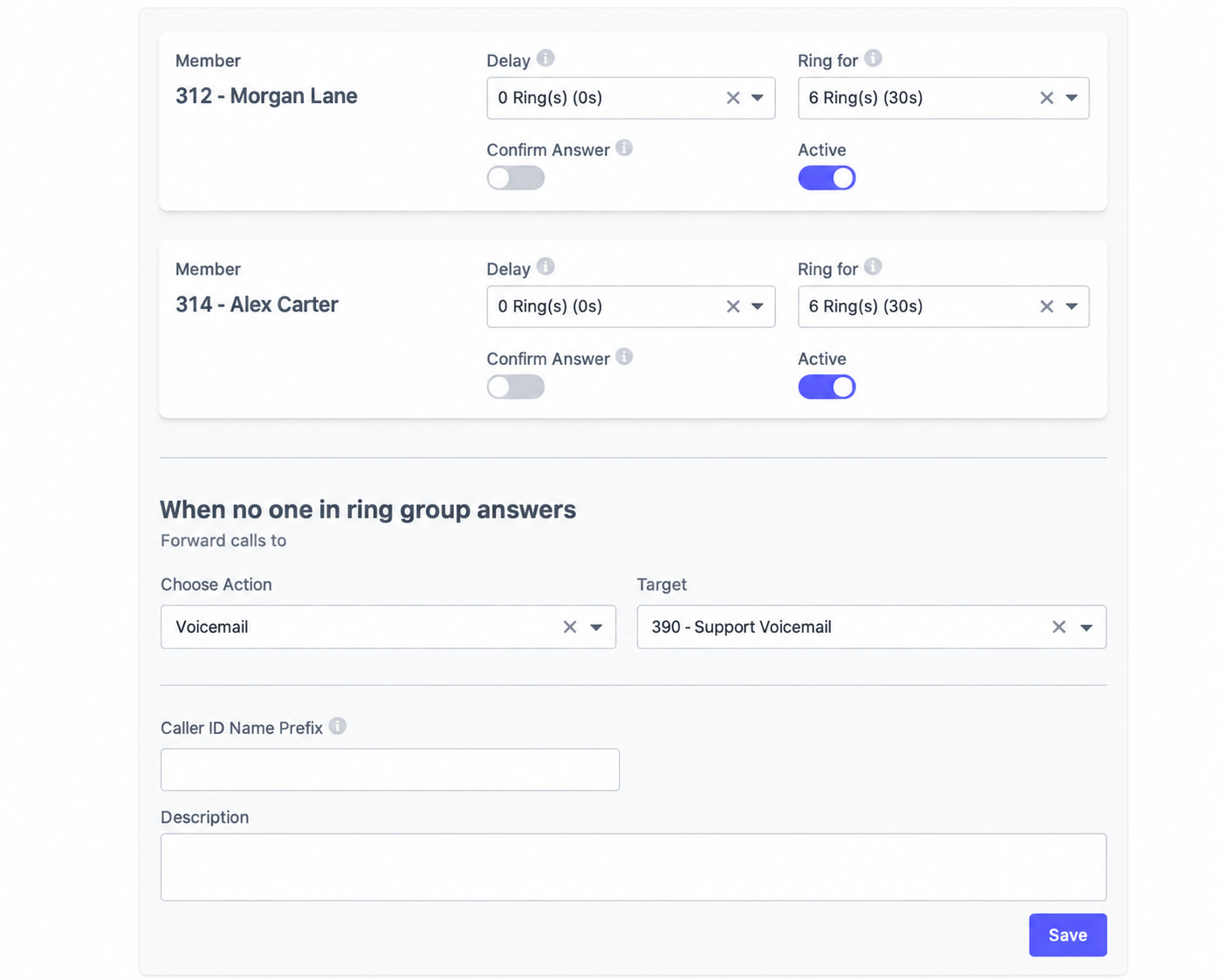
This destination handles calls when the group is not answered. It is separate from temporarily forwarding every call to another destination.
Temporarily forward the ring group
Use Call Forwarding when you temporarily want calls to the ring group to go somewhere else—for example, to another team or an outside number.
- Open the ring group and choose the Call Forwarding tab.
- Turn forwarding On.
- Select Choose Action, then select or enter the Target.
- Select Save.
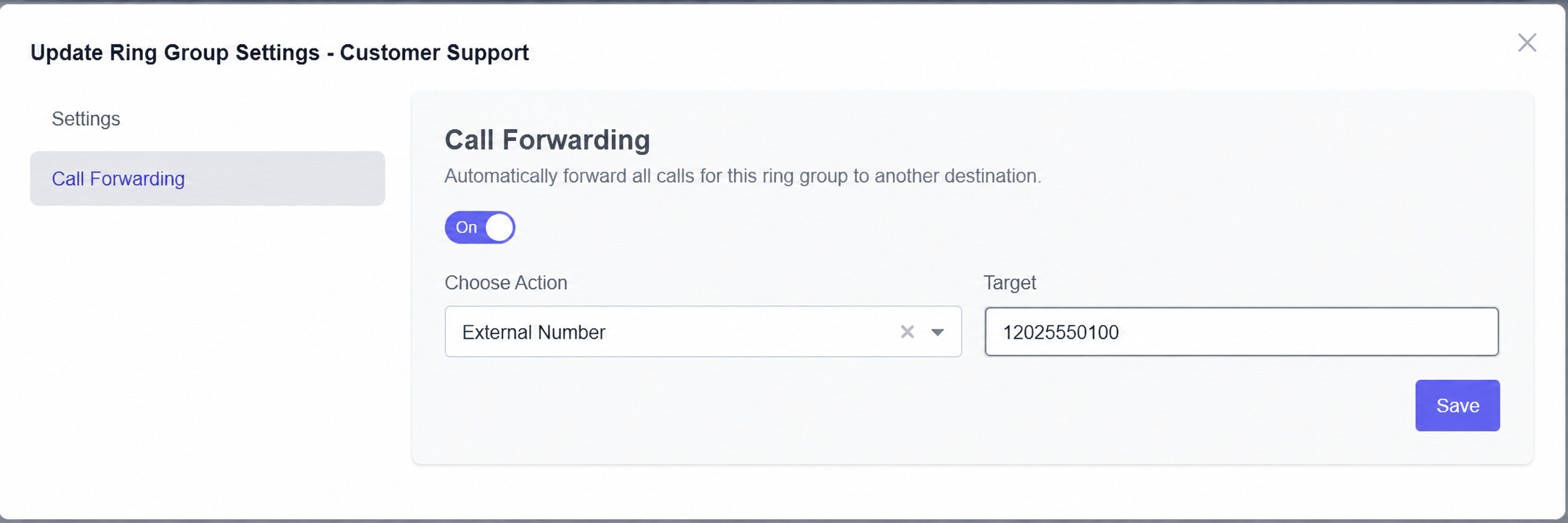
When you are finished: return to Call Forwarding, turn it off, and select Save to restore the group’s normal ringing.
Check your changes
- Confirm each intended member is active and has the correct Delay and Ring For.
- Confirm the unanswered-call destination is the mailbox or other destination you intended.
- Check whether temporary forwarding is on or off.
- After saving, call the business number that routes to this group. Check which phones ring and, on an unanswered test, where the call goes.