ADMIN PORTAL
IVR Menus (Virtual Receptionist / Automated Attendant)
Applications → IVR Menus
IVR Menus allows you to host a virtual receptionist / automated attendant system to greet callers with a menu of options to select.
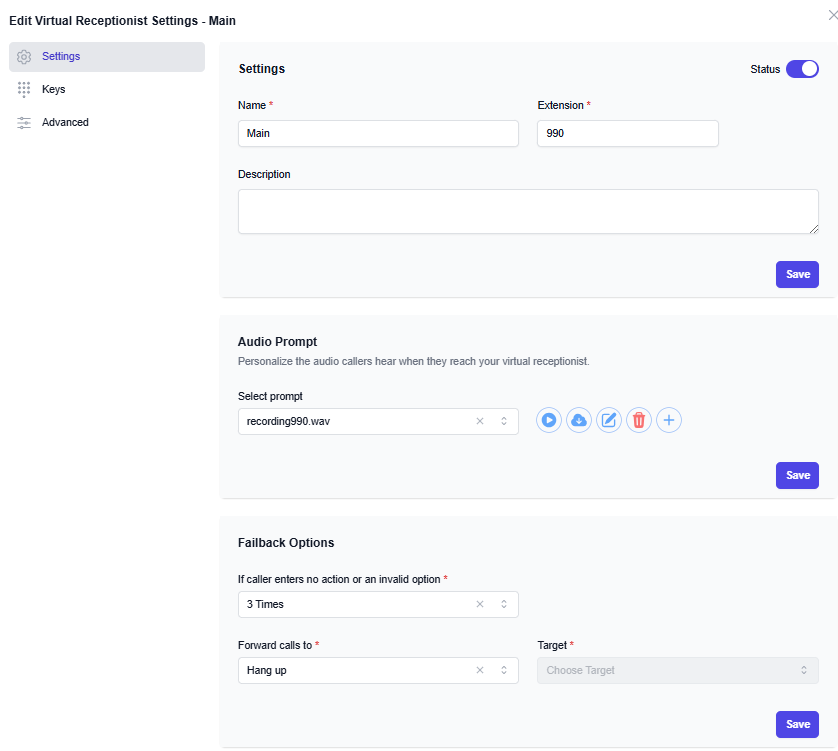
To configure/add an IVR Menu, select the IVR you’d like to modify and use the following guidance:
Settings Menu:
Audio Prompt: Select the recording that you’d like callers to hear when reaching this IVR Menu. To add a new recording:
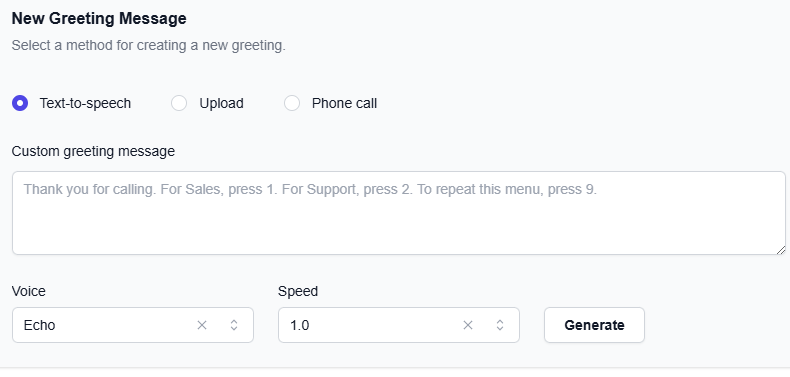
Press the + button, and the below will be prompted:
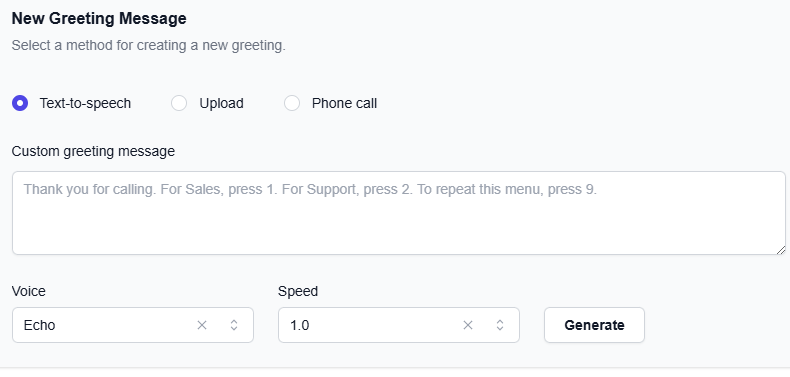
To generate a recording using AI, use the Text-to-speech option. Enter a greeting that you want AI to generate. The greeting must be entered precisely, and with proper grammar, and without abbreviations. This also means that you may have to alter the spelling for foreign names, in order for the pronunciation to be as accurate as possible. Select a voice, and press Generate. Echo (American male) and Nova (American female) are the voices we recommend.
Example, setting up an AI greeting for a company named "Veyrecia Health". Notice the spaces between numbers, the amount of commas, and how Veyrecia was modified to "Vayreesha" for the purposes of getting the name correctly pronounced: Thank you for calling Vayreesha Health. If this is a medical emergency, please hang up, and dial 9 1 1. If you know your party's extension, please enter it now. We are located at, 4 7 6 0 0, Ocean Avenue, Suite 504, in Edison New Jersey. Our office hours are, Monday through Friday, from 9 AM to 5 PM. To speak with a representative, press 0. For the company directory, press 9.
After the recording has generated, you will be able to play it. If you are satisfied with the recording, press Apply. You can rename the recording by pressing the pencil icon.
Press Save once satisfied.
To upload a recording of your choice, press the Upload button. You may upload a wav or mp3 file in any format.
To record a greeting with your voice, press the Phone call button and follow the below directions:
Dial *732 from any extension within your organization
You will hear a prompt asking for an “ID Number”. If this is your first recording, enter anything you’d like followed by #. For example: 990#. We generally recommend to match the virtual extension number of your IVR Menu.
You will be prompted to record a greeting. Press # when finished recording.
Follow the prompts to save/re-record the greeting
Refresh the IVR Menus page, and in the Select Prompt section, find Recording900. (Notice that “990” [or the ID you entered] was the ID number entered earlier.)
To replace an existing recording, dial *31 and use the same ID number that already exists. No further changes will be needed. All recordings associated with the ID number will be updated.
If caller enters no action or an invalid option: This defines the total amount of attempts that the caller can press the wrong button and re-listen to the IVR Menu, or not press anything at all and re-listen to the IVR Menu. This is generally kept at "3 times" unless the IVR Menu specifically states "please hold for XYZ". In that case, you should set it to "1 time" and be sure to also reduce the "Prompt Timeout" (see below) from 10 seconds to 1-2 seconds.
Forward calls to: Once the above threshold is met, what should happen with the call? Generally, you want to set it to "Hang Up", unless the IVR Menu specifically states "please hold for XYZ". In that case, you should have the menu forward to the desired destination.
Keys Menu
In the Keys menu, customize as desired. This is where the prompts for "press 1 for X, press 2 for Y" are programmed.
Advanced Menu
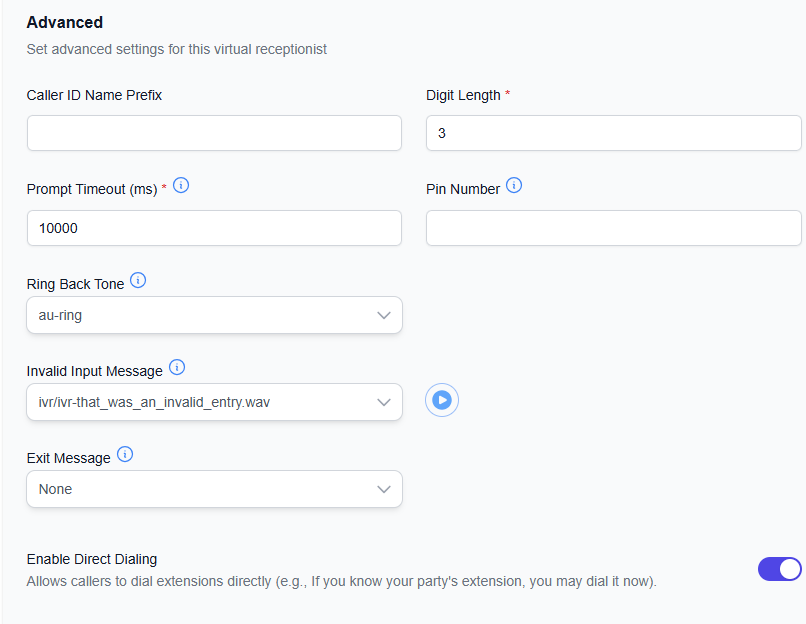
Caller ID Name Prefix: Append a tag to the beginning of the Caller ID Name
Digit Length: should generally be left untouched, and should match the maximum number of digits used for extension numbers within your organization.
Ring Back Tone: this is the ring tone that the caller will hear. This may be replaced with music on hold or a recording.
Prompt Timeout: How many milliseconds (1 second = 1000 ms) before the IVR Menu times out and is redirected to: "Forward Calls To" (in the Settings menu, see above).
Enable Direct Dialing: This allows for callers to enter an extension number when reaching the IVR Menu. This is generally enabled unless your organization does not need/want the caller to reach extension members directly.
Example greeting templates:
Thank you for calling the corporate offices of Johnson and Smith. If you know your party's extension, please enter it now. For new orders, press 1. For the wholesale department, press 2. For customer service, press 3. For all other calls, press 0.
Thank you for calling ABC Corporation. Our offices are currently closed. Our office hours are, Monday through Thursday, from 8:30 AM to 5:30 PM, and Fridays, from 8:30 AM to 3 PM. If you know your party's extension, and would like to leave a message, please enter it now. Otherwise, to leave a voicemail in our general mailbox, press 0. Thank you.
Thank you for calling the office of John Smith. Our offices are closed in observance of a holiday, and will re-open the next business day, at 9 AM. If you know your party's extension, and would like to leave a message, please enter it now. Otherwise, to leave a voicemail in our general mailbox, press 0. Thank you.