USER PORTAL
Call Forward/Follow Me
Applications → Call Forward
Call Forward
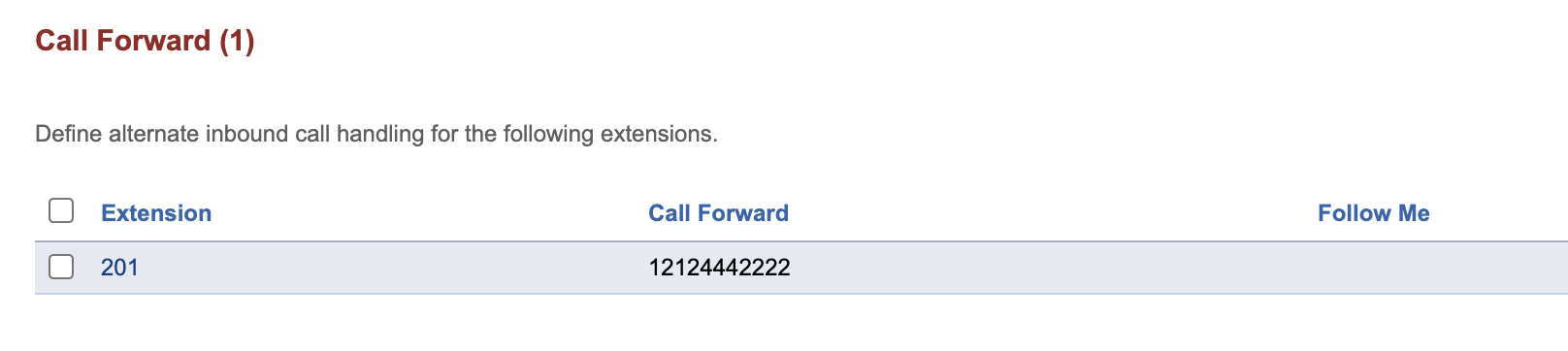
The Call Forward page allows you to change your call handling settings. Once you reach the page, you will be displayed a list of the extensions that your username is authorized to manage. If Call Forward or Follow Me is enabled, the forwarding phone number will be displayed per the example below.
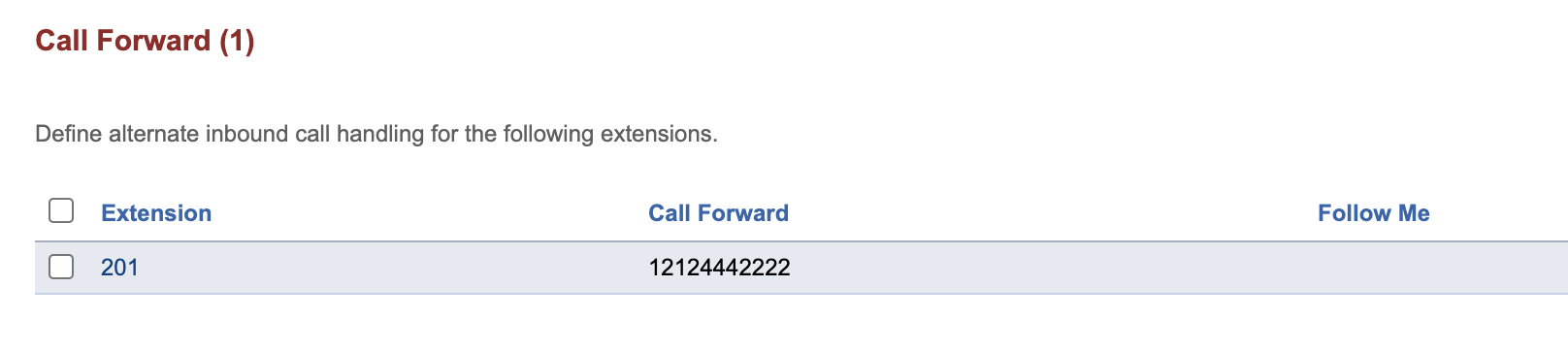
Click on the extension number that you’d like to modify to change the Call Forward & Follow Me settings
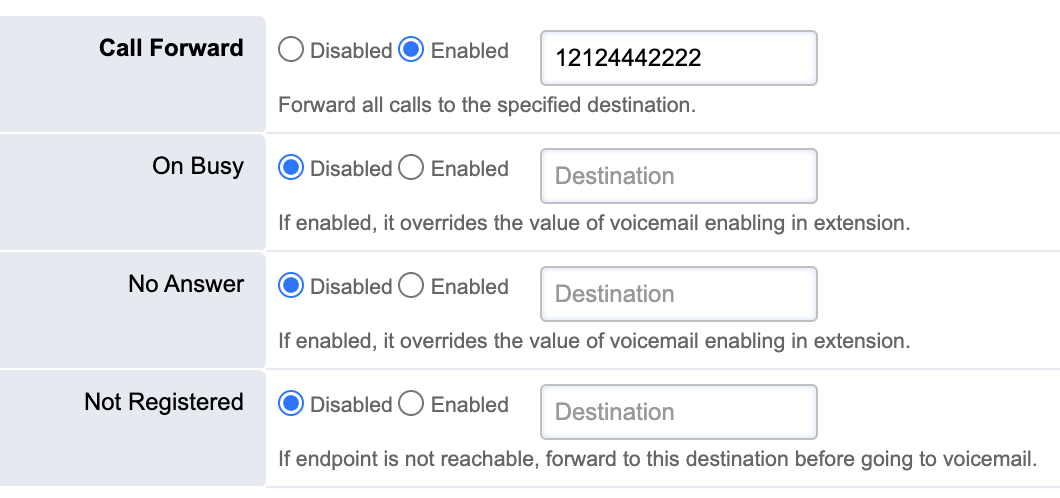
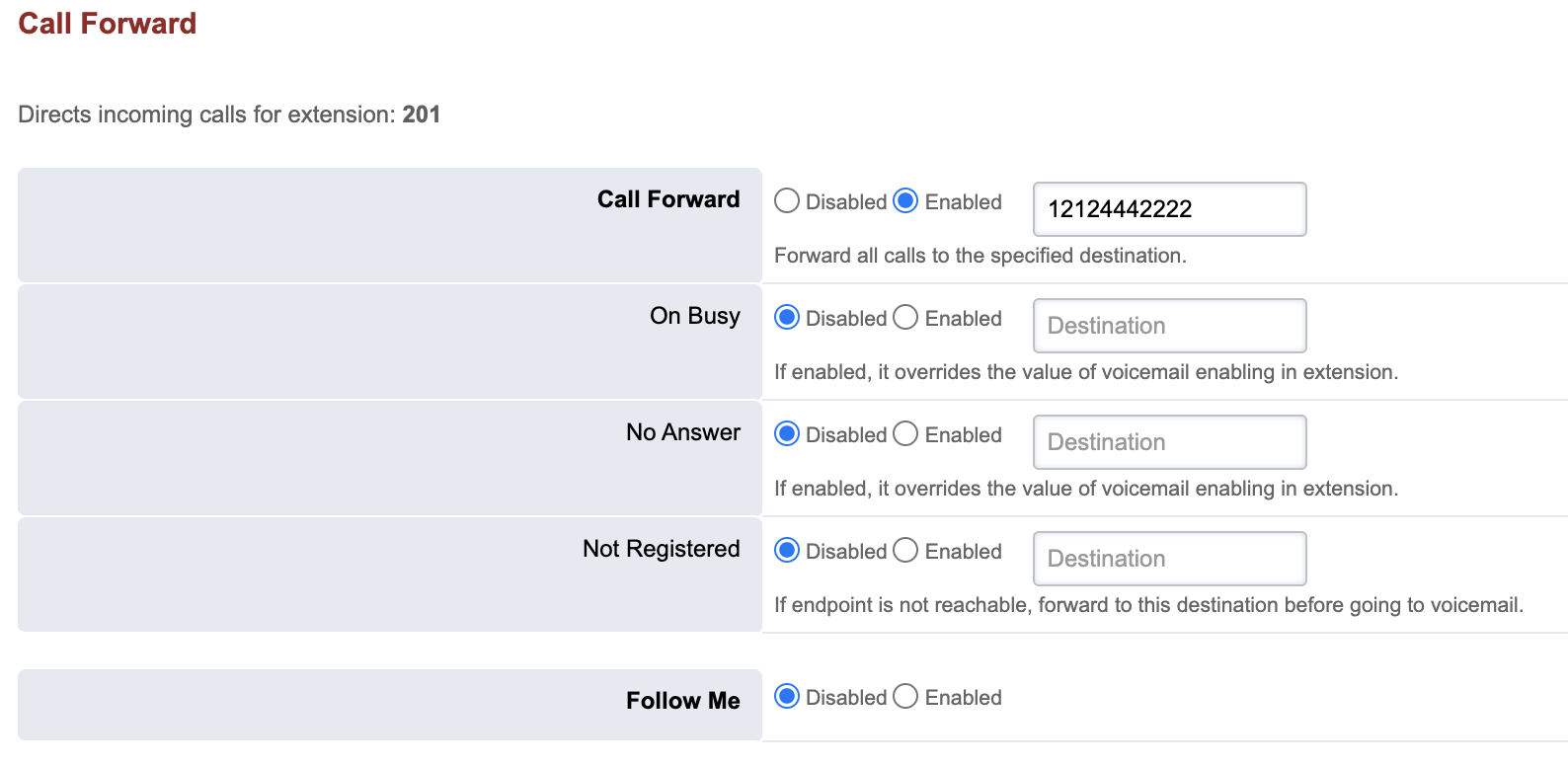
Call Forward: Forward ALL calls. You may enter an outside phone number, or a local extension number. When entering outside phone numbers, use 11-digits, such as the example provided in the above display.
On Busy: Forward calls only if you ignore the call by pressing “ignore” on your desk phone, or if you are on another phone call
No Answer: Forward calls after first attempting to ring your desk phone
Not Registered: Forward calls if your desk phone is unplugged. This is useful in the event of an internet outage, office move, power outage, etc. Calls will forward automatically once the desk phone stops communicating with Junction’s servers.
Follow Me
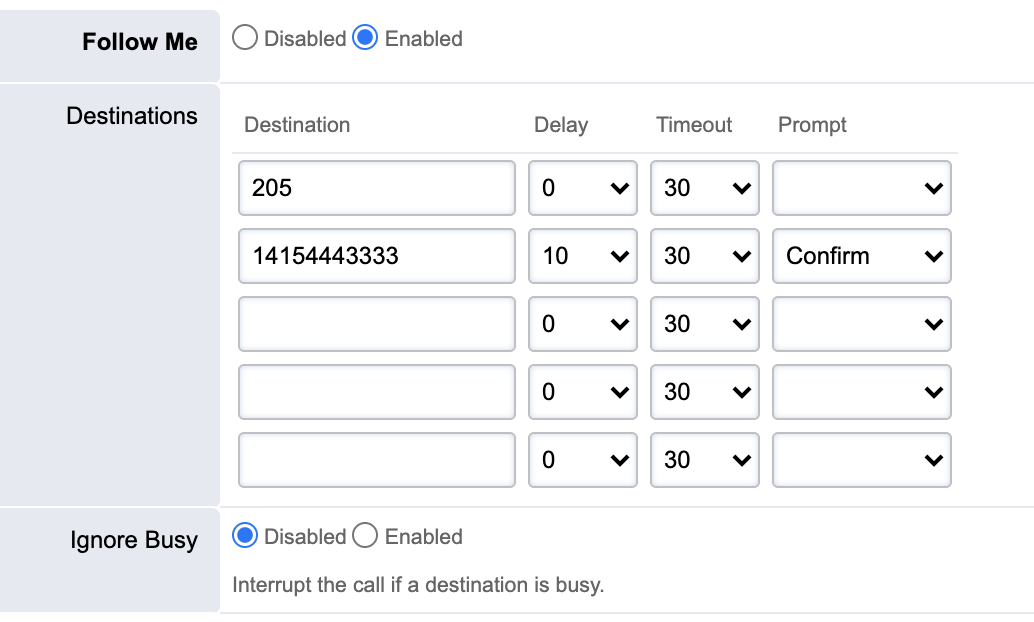
Once enabled, a Destinations list will appear
You can set up Follow Me to ring up to 5 other destinations
In the provided example, calls will simultaneously ring the user’s extension, x205, and 415-444-3333
415-444-3333 shows a delay of 10 seconds. This means that the system will wait 10 seconds before trying to reach this phone number.
415-444-3333 also shows a “Confirm” prompt. This means that when the user answers the call, they will be asked to press 1 to confirm the call. This ensures that outside callers will never be directed to this user’s personal voicemail.